Which configuration is linked?
Our software uses client-specific files such as logos, templates/models, and central profiles. During installation, the link is established between the program and the configuration folders (Shared/Config and Content). If the paths are not set correctly, or if there are insufficient rights, this will result in central profiles not being found, or the Documentaal logo being displayed instead of your own logos. The trial license will also be activated, causing a message to appear after a month stating that the trial license has expired.
To check if the configuration is correctly linked, go to Settings -> About dStyle365/LegalWord365 in the dStyle365/LegalWord365 ribbon in Word, and check the location paths.
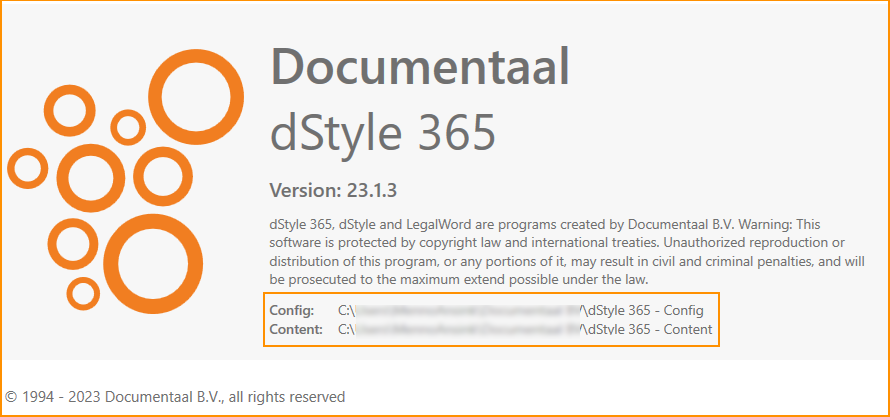
If these paths do not lead to the correct configuration, there is still an option to rectify this.
Via the registry
- For 32-bit Office users, navigate to
HKEY_LOCAL_MACHINE\SOFTWARE\WOW6432Node\Documentaal\dStyle365and change ConfigFolder and ContentFolder - For 64-bit Office users, navigate to
HKEY_LOCAL_MACHINE\SOFTWARE\Documentaal\dStyle365and change ConfigFolder and ContentFolder - For single-user installations, navigate to
HKEY_CURRENT_USER\Software\Documentaal\dStyleand change ConfigFolder and ContentFolder