Footnotes and endnotes are both notation and referencing systems used to include additional information in a document without interrupting the main text. Although similar, there are some key differences between footnotes and endnotes.
Footnotes
- Footnotes are placed at the bottom of the page where the reference to the note is made.
- They are typically used to cite sources, add explanations or definitions, make comments, or provide additional information directly relevant to the text on that specific page.
- Footnotes are numbered, and each numbered reference in the text corresponds to a corresponding footnote at the bottom of the page.
Endnotes
- Endnotes are placed at the end of the document, usually on a separate page.
- They are used to provide more extensive comments, citations, bibliographic information, or other references that are not specifically related to a particular page, but rather to the entire document or a specific section.
- Unlike footnotes, endnotes are numbered or marked in the text itself with a reference mark (for example, a superscript number).
Both footnotes and endnotes are useful tools for providing additional information, citing sources, or adding comments to your documents. The choice between footnotes and endnotes depends on the specific needs and requirements of your document.
In Microsoft Word, you can easily add footnotes and endnotes to your documents. Follow the steps below:
Place the cursor at the position where you want to insert the footnote.
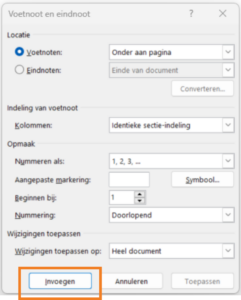
Go to the "References" tab in the menu bar at the top and click the arrow in the bottom right of the Footnotes section. This opens the "Footnote and Endnote" dialog box.

In the dialog box, you can choose between placing a "Footnote" (at the bottom of the page) or an "Endnote" (at the end of the document).
Choose the desired footnote type and select the appropriate options, such as the numbering format or the symbol used.
Click "Insert" to insert the footnote. A numbered or marked reference will automatically be inserted at the cursor's position.
Go to the bottom of the page (or to the end of the document, depending on the type of footnote you chose) to add the footnote text. Type the desired information or paste the copied text or references into the footnote section.
After inserting footnotes, Word automatically adjusts the numbering if you add or remove additional footnotes. You can also customize the formatting of the footnotes, such as font size, font, and indentation.
dStyle365/LegalWord365
In dStyle365/LegalWord365, we have made inserting a footnote at the bottom of the page even easier by including it in our ribbon.

Simply click the footnote button to insert it directly at the cursor's location. In addition to the footnote button, we have also added other frequently used functions such as pasting text without formatting, restarting the numbering of a numbered list from 1, and inserting a content control. Hover your mouse over the different buttons to see what they do and how they can help you create your document.

Using footnotes in Microsoft Word can make your documents more professional and better organized, especially if you have many references or additional information you want to include without interrupting the main text.
For more information, also see our partner Microsoft's site: Insert footnotes and endnotes