Reactivating a disabled add-in
For various reasons, such as abruptly closing Office, add-ins can be disabled. If LegalWord365, dStyle365, or DMSforSharepoint is no longer working, it is possible to reactivate the add-in.
Steps to reactivate an add-in
- In the Office application (e.g., in Word), go to File and select Options.
- Click the Add-ins tab and under Manage: select the option 'Disabled Items'.
- Click the Go… button. Is the add-in disabled? Re-enable it.
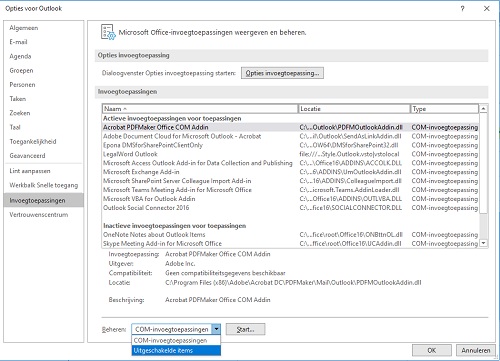
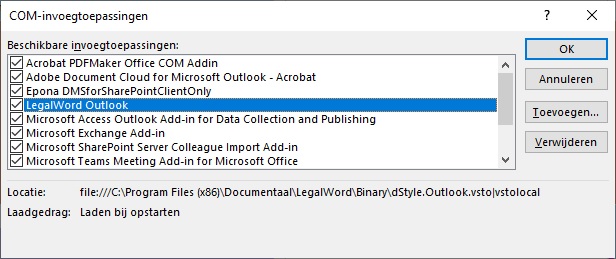
Next, the add-in must also be activated. Perform steps 1 and 2 again and check the add-in.
Add-in started too slowly
The add-in may also have been disabled because it started too slowly. In that case, a yellow bar often appears on your screen with a message stating that the add-in has been disabled due to slow loading time.
