Text
Easily add text blocks to your document using the Text button.
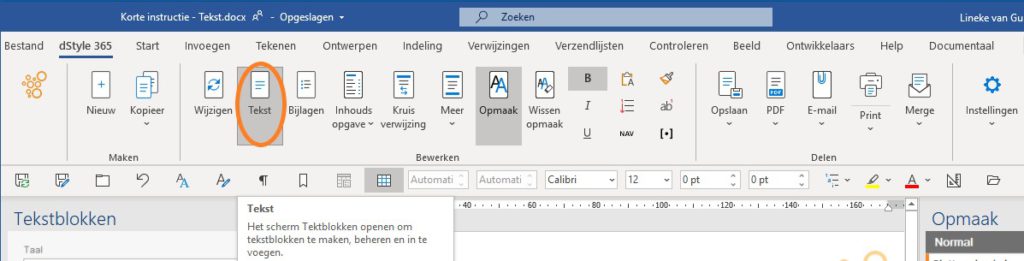
Go to the Text button in the ribbon. The Text Blocks screen will open on the left. In this screen, text blocks can be created and managed. Of course, it also offers the possibility to insert existing text blocks into the document at the cursor's position.
Create a new text block
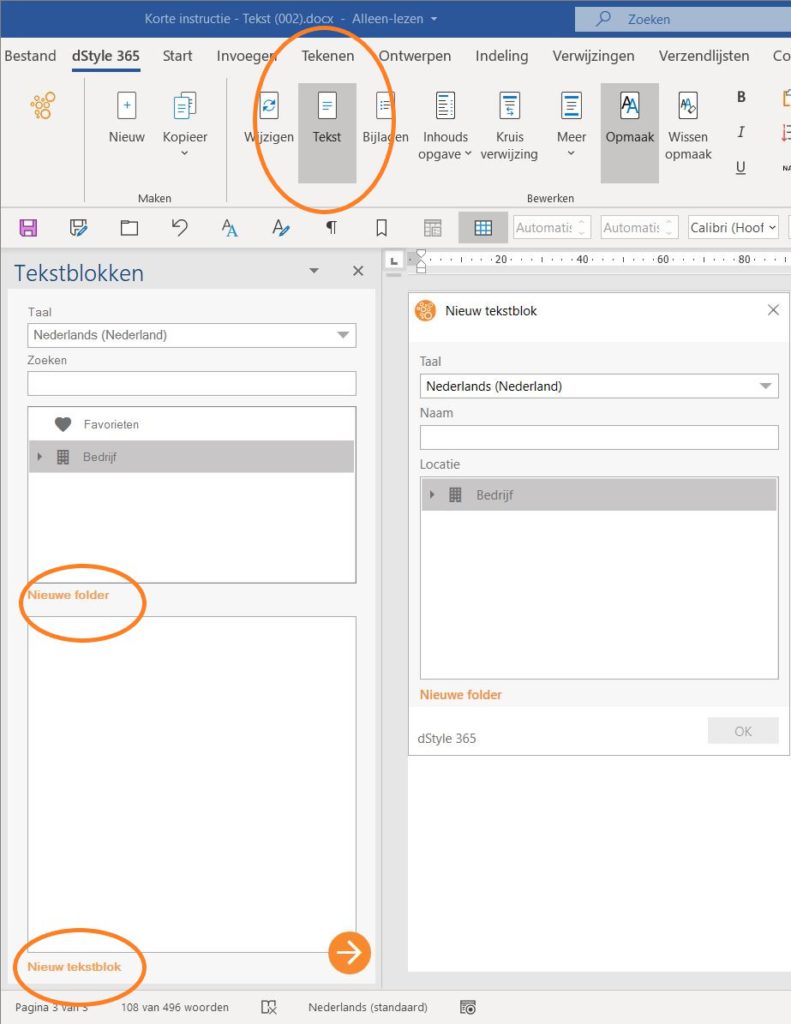
Select the Business category or, if available, Personal and possibly a subfolder within this category. The new text snippet will be saved in the selected folder. Then select the text that should be in the text block. This can be text that has just been typed or text from an existing document. A text block has no limitation in terms of size and content. It can contain 1 line of text, 3 A4 pages of text, but also tables, graphs, and/or images.
Click New text block in the bottom left of the Text Blocks screen. In the screen that appears, enter a logical name for the text block and click the OK button. After the text block has been saved, every employee within the organization, who has rights to the folder where the text block is saved, can use it.
Favorite a text block
If a text block is used frequently, it is practical to add it to the Favorites folder. Select the text block and click the heart symbol on the right. A text snippet can be removed from the Favorites folder in the same way.
Modify a text block
In the Text screen, select the text block that needs to be modified. Click on the 3 dots to the right of the text block and in the drop-down menu click Edit. The text will open as a Word document. Make changes as needed, save the document, and close the document. Immediately after saving the text block, the modified version will be available throughout the entire organization.
Rename a text block
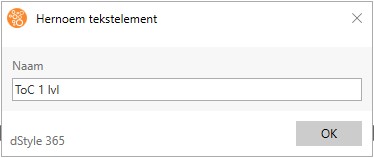
In the Text screen, select the text block that needs to be renamed. Click on the 3 dots to the right of the text block and in the drop-down menu click Rename. Change the name in the screen that opens and confirm with the OK button.
Please note! If the text block is used in a dynamic model, it is not advisable to change the name. If this is nevertheless necessary, the text block must be re-added to the dynamic model.
Delete a text block
In the Text screen, select the text block that needs to be renamed. Click on the 3 dots to the right of the text block and in the drop-down menu click Delete. A message will appear asking if you are sure you want to delete the text block. Click Yes to actually delete the text block.
Insert a text block
Place the cursor at the position in the document where the text block should be inserted. In the Text screen, select the desired text block. Insertion can be done by double-clicking on the text block or by clicking on the circle with the right arrow, in the bottom right of the Text screen.