Tabs and Tab Stops are used to move text to specific positions and organize it clearly. They are useful for aligning text and creating structured documents.
Setting Tab Stops
Tab stops ensure that the cursor or text automatically jumps to a specific position when you press the Tab key.
In Word, you can set different types of tab stops, such as left, right, center, and decimal. Follow the steps below to do this:
1. Open the Tab Stop window
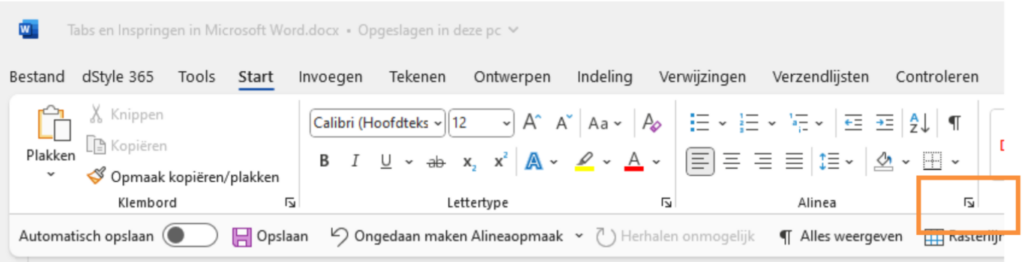
Go to the Home tab and click the button in the bottom right of the Paragraph pane.
2. Go to the tab settings
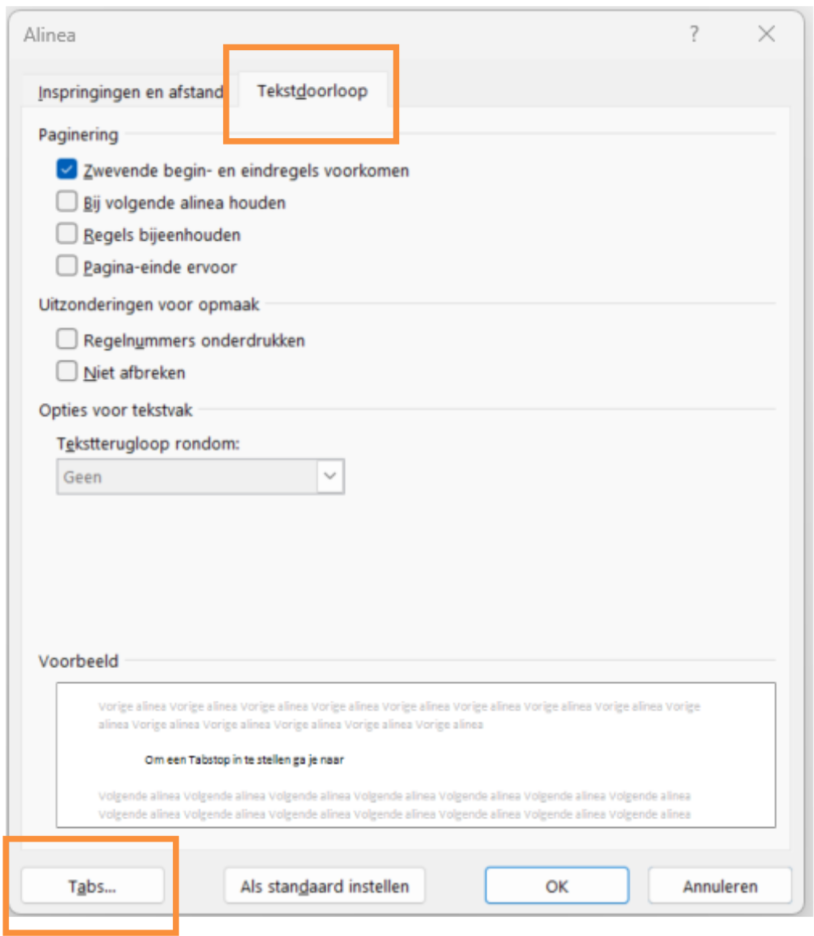
At the top of the Paragraph screen, click Text Wrapping and then Tabs.
3. Enter the tab position
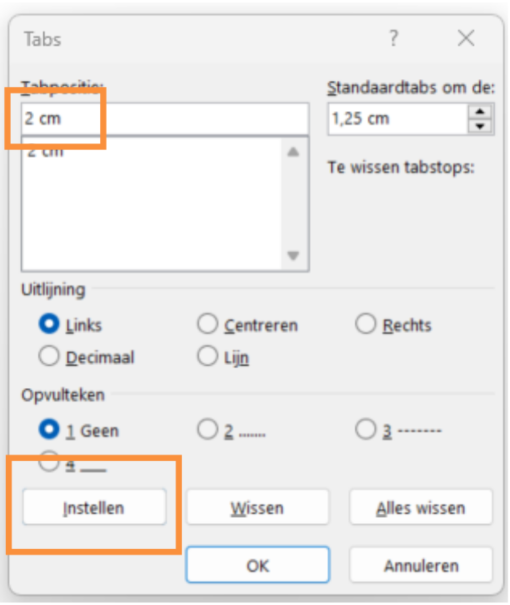
Under Tab position, enter the desired distance. Click Set and then OK. You can enter multiple tab stops. By repeatedly pressing the Tab key, you will jump to the next position each time.
Using Tab Stops
To move text to a tab stop:
- Place the cursor at the desired position in the text.
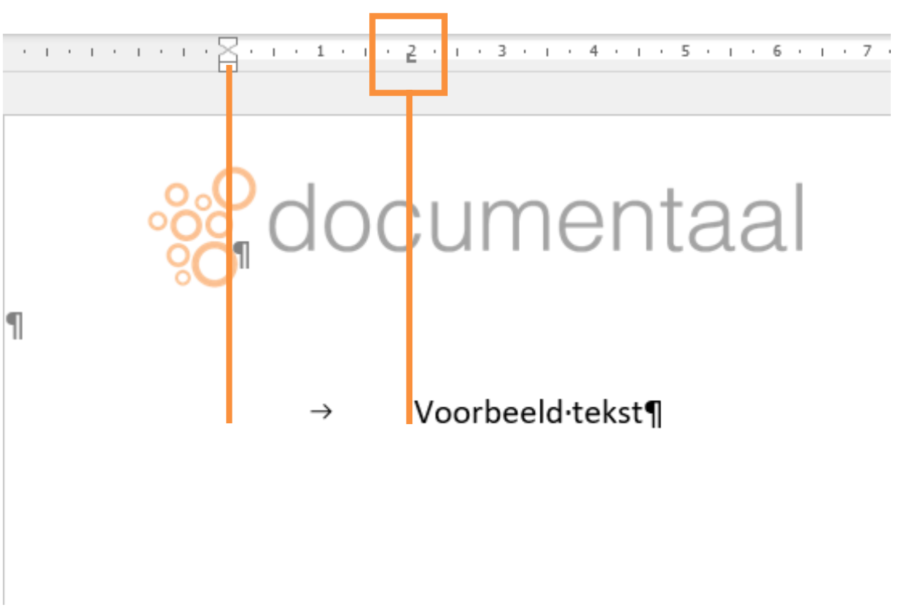
- Press the Tab key. The text will automatically jump to the next tab stop.
Removing Tab Stops
If you want to remove a tab stop, you can:
- Drag the tab stop marker off the ruler.
- Right-click a tab stop marker and choose Remove Tab Stop.
Tab stops allow you to accurately align and organize text and paragraphs. This is particularly useful when creating lists, aligning columns, or setting up a simple table.