Tables in Microsoft Word are useful for creating overviews, schedules, comparison tables, reports, and other types of data presentations. They provide an organized and visually appealing way to display information and can be customized to specific needs and formatting requirements.
To make it easy for you, we have reduced the many table options in Microsoft Word to a few simple choices in your organization's corporate style, so you can quickly insert the desired table into your document.
In the dStyle365/LegalWord365 ribbon, under the 'More' button, you will find several useful functions, including the table function:
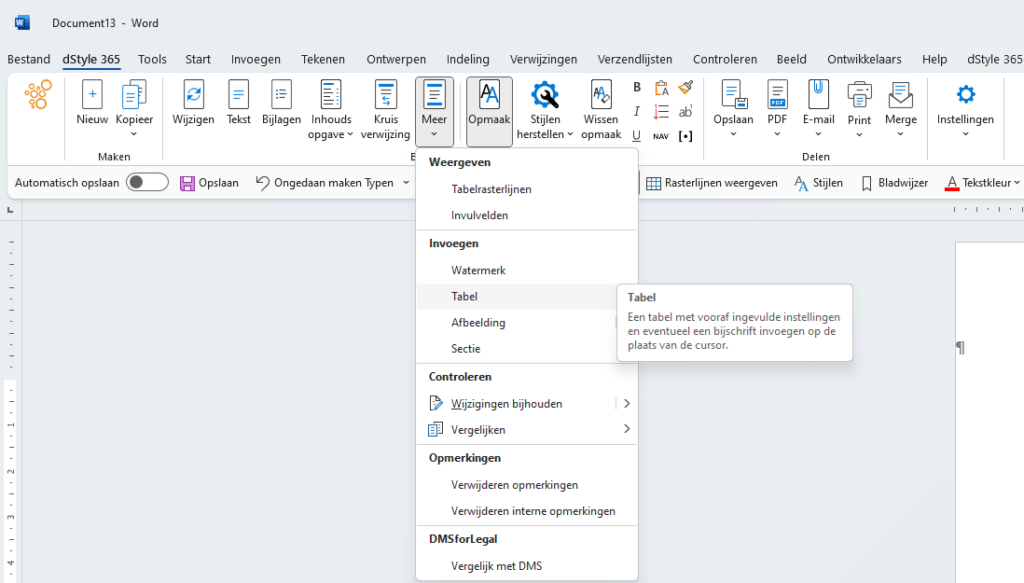
When you click the 'Table' button, the dStyle365/LegalWord365 Table screen appears:
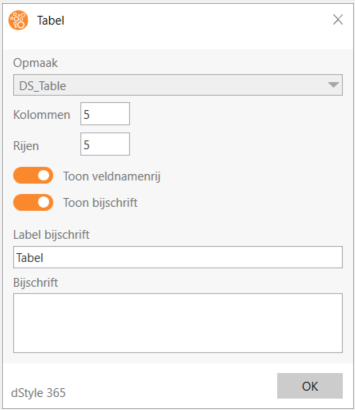
From this screen, you can specify how many rows and columns your table should contain and whether your table should display a header row and/or a caption.
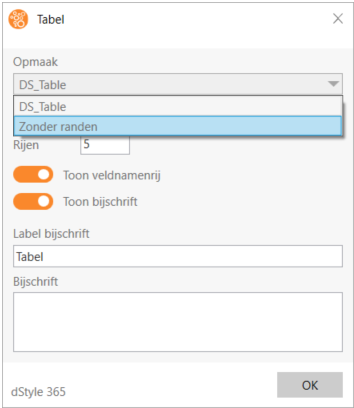
Below the dropdown menu, you will also see the option to insert a table without borders (an invisible one).
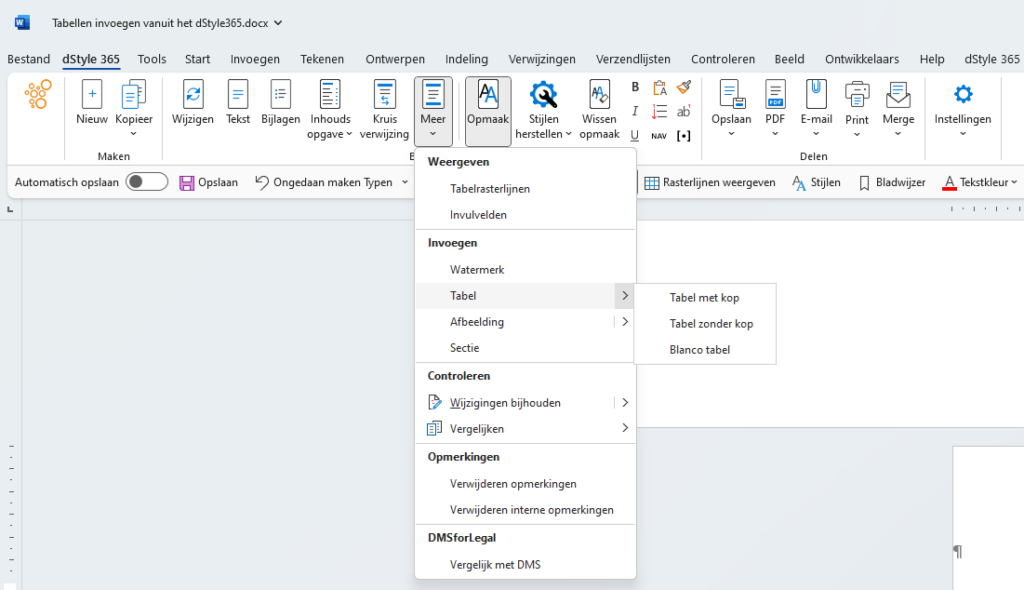
When you click the arrow next to 'Table', you will see several options to automatically insert a table as described in the options (a table with header, a table without header, or a blank table).
With the Tables function in dStyle365/LegalWord365, we are confident that you can easily and quickly insert an appropriate table into your document.
Advantages of dStyle365/LegalWord365 tables
- Corporate style: Automatically in your organization's correct formatting
- Simplicity: Only a few choices needed
- Consistency: All tables look the same
- Speed: No extensive formatting required anymore