Language and email signature
You can set the language for the Microsoft Office interface. This setting then applies to all ribbons, windows, menus, options, and so on. You can also define languages here. Where necessary, you select them for the documents you create and manage. Fixed data, such as a salutation, will then automatically appear correctly in the document. Spell check will also automatically adjust to the selected language. Finally, you also indicate here whether you automatically place a signature in Outlook, select it manually, or turn it off.
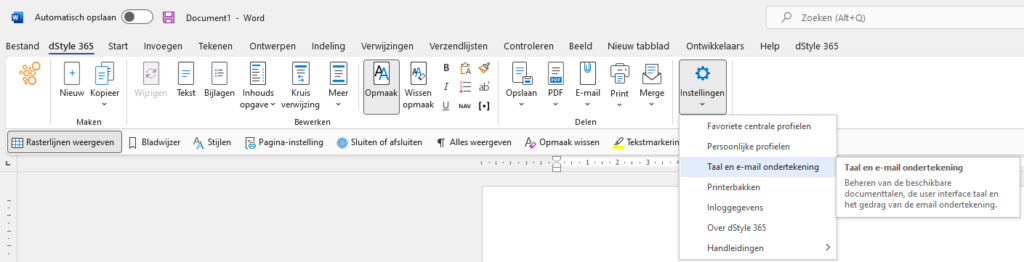
In the dStyle365/LegalWord365 ribbon, click on Settings on the right side and then select Language and email signature.
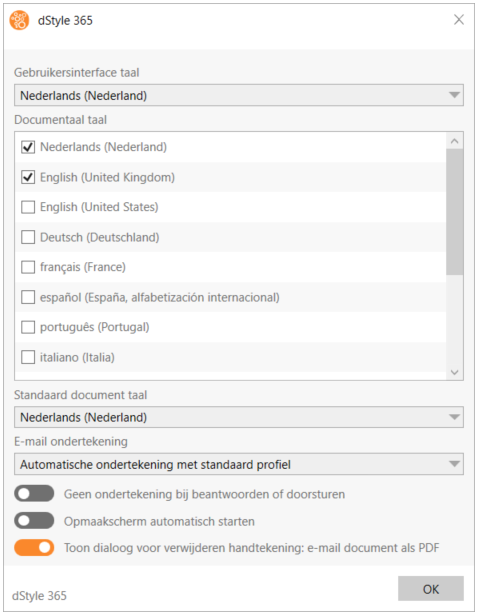
Under User interface language, a drop-down menu appears. Here you can choose a different language for all functionalities within Microsoft Office; in this case, Dutch (Netherlands) has been selected.
Under Document language, you indicate which language or languages you want to use for your documents. The languages you select here are also visible when creating a new document. The language selected under Default document language is automatically selected when creating a new document.
Email signature
Under Email signature, you will see a number of options:
- Automatic signature with default profile: This means that a signature will automatically be placed in Outlook with the data from your default profile (click here for more information about default profiles)
- Choose profile with each email: When creating or replying to an email, you will be given the choice of the profiles you have selected for yourself to then sign with
- No automatic signature: In this case, a signature will not be placed automatically. You can still select a signature using the Signature button in Outlook if desired.
The last three options can be turned on or off via a slider:
- No signature when replying or forwarding ensures that you only place a signature for new emails.
- Automatically start formatting screen means that the Formatting screen with selected styles is automatically opened so you can make your choice directly from there.
- Show dialog for removing signature: email document as PDF is only applicable when you use the Email as PDF function from the dStyle365/LegalWord365 ribbon. You will then be given the option to remove any signatures present in the document when creating the PDF file so that you do not send them along.
The language setting for the interface is set by default for your organization. It is preferable not to change it, unless there are compelling reasons to do so. It is possible that by choosing a language setting, Microsoft Office becomes unreadable and incomprehensible to you.