Switch Configuration
Sometimes you need to use multiple configurations, for example for a test configuration and production. It is then convenient if you can change the configuration in a few small steps. The SwitchConfiguration tool was created for this application.
Turn on the Tools Ribbon (see this description). In that menu, go to Admin settings -> Switch Configuration. You can also create a shortcut to this program for the path:
- For dStyle365:
C:\Program Files (x86)\Documentaal\dStyle365\Binary\SwitchConfiguration.exe - For LegalWord365:
C:\Program Files (x86)\Documentaal\LegalWord365\Binary\SwitchConfiguration.exe
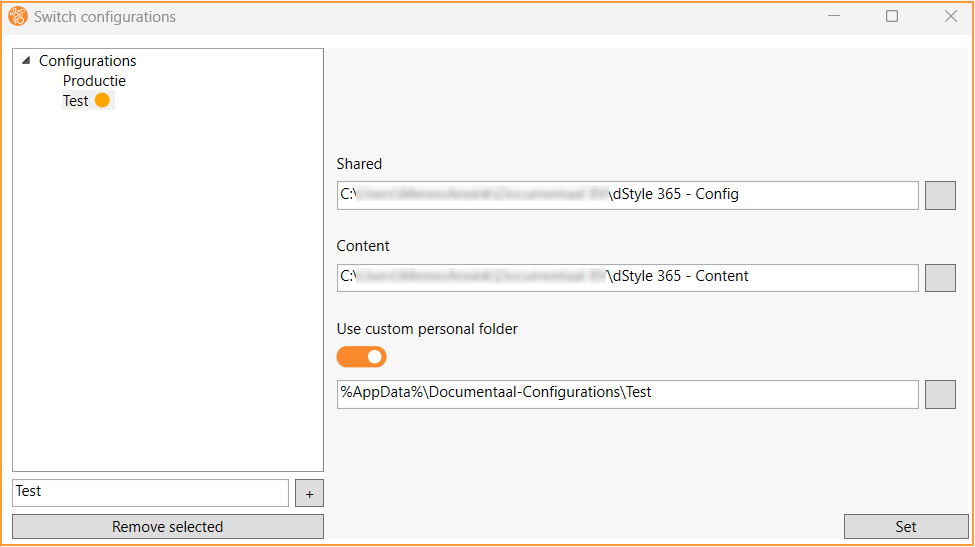
Create a configuration on the left by entering a name (e.g., 'Test') and clicking the plus sign. Then navigate to the Shared (Config) and Content folders. 'Use custom personal folder' is optional to allow user data to differ. Click Set to choose this configuration. An orange dot will be added to the selected configuration.
Then restart Word / Outlook.