Repair Styles
The new Repair Styles function repairs styles in a document that have become corrupted. This can happen when multiple people work on a document simultaneously or when you receive a document that has been edited by a third party.
We offer three different options to repair styles. These are available from version 23.2.2 of our dStyle365/LegalWord365 software.
1. Manually repair styles

When you choose this option, a pop-up window will appear showing you the location where the dStyle365/LegalWord365 MasterTemplates are stored:
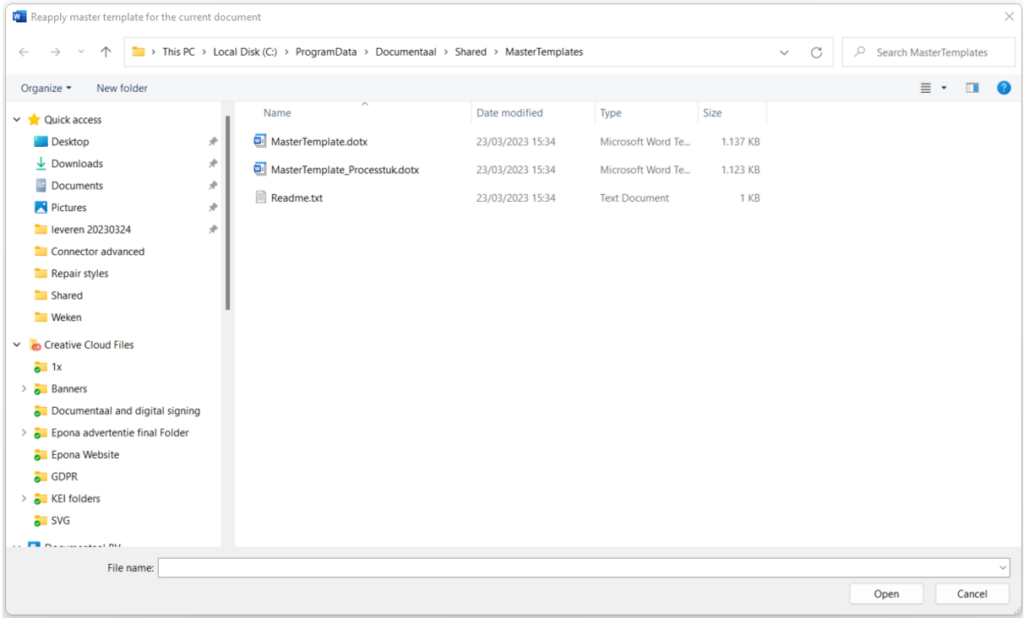
From here you can select the correct MasterTemplate and click Open. The styles, as defined in the chosen MasterTemplate, are automatically copied over the document. This replaces the corrupted styles in the document with the styles as they are known in the MasterTemplate.
2. Automatically repair styles

The second option of the Repair Styles function is Automatically repair styles. This function automatically finds the template used to create the document and repairs the corrupted styles based on the known styles in the template used. For example, if the document with corrupted styles is based on the letter template, this button automatically copies the styles from the letter template over the document. If dStyle365/LegalWord365 is unable to determine which template was used, you will see the same pop-up window as for option 1 Manually repair styles:
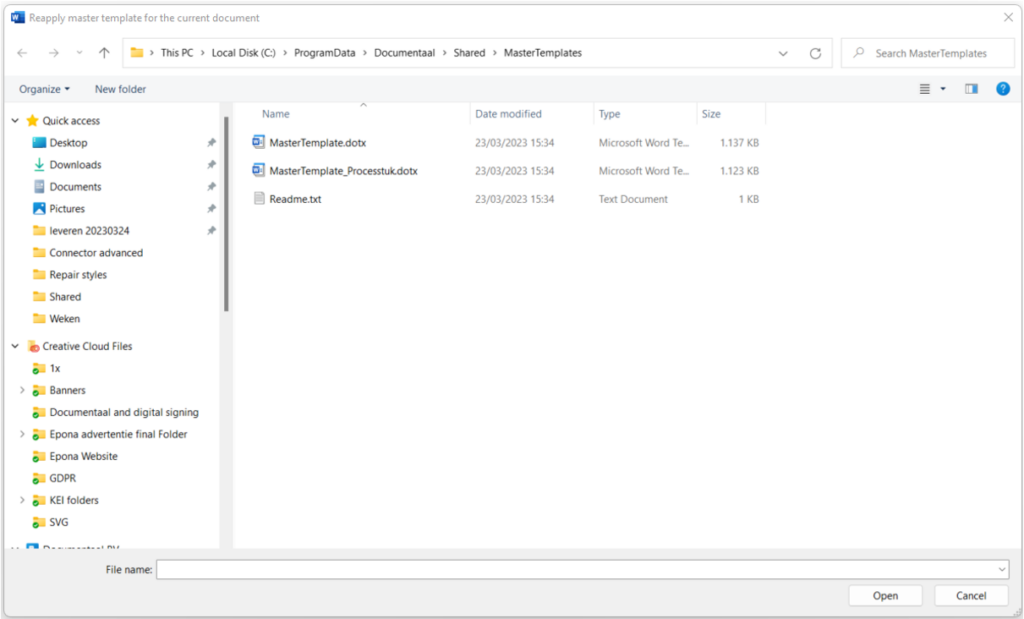
From this screen, you can select the correct MasterTemplate. Click Open and the styles as defined in the chosen MasterTemplate will be copied over the document to repair the corrupted styles.
In some cases, the software is unable to determine which template was used. This happens, for example, when you receive the document from a third party and the document is not initially a dStyle365/LegalWord365 document.
For administrators:
For the 'Automatically repair styles' option, it is possible to set a default template other than the MasterTemplate in situations where the original template used cannot be determined by the system. This can be useful in situations where the MasterTemplate is not appropriate, or if you prefer not to allow users to freely select documents and templates to repair a document with damaged styles. If you require assistance with this option, please contact Documentaal so we can guide you through the procedure.
3. Repair Letter

The third option, Repair Letter, is available to demonstrate the option of having specific buttons for using specific templates to repair a document (in this case, the letter template). It is possible to extend the list of options under Repair Styles with one or more specific buttons, each indicating the template that will be used to repair the document. We created this option because some clients have multiple MasterTemplates for different situations (legal and non-legal documents, for example) or multiple templates with different styles. We want to provide them with the ability to select the correct option to repair a document with a simple click of a button.
An additional advantage in this case is that this option can also be used to easily import your company's styles into a document that originally came from a third party and is not a dStyle365/LegalWord365 document to begin with.