Profile Settings for Microsoft Outlook
For digitally signing or not signing emails you are going to send, you also use the Profiles window, but then the right part of it. There are four options you can apply, often depending on the generally accepted agreements within your organization.
Option 1 – Profile choice for e-mail signature
Every time you compose a new email, a window appears asking you to indicate which profile you want to sign the email with (screen text: Profile choice for e-mail signature).
Option 2 – Manually insert a signature
dStyle365 skips the set profile and therefore does not generate a signature. You manually add a signature to each email (screen text: Manually insert a signature).
This option is often used within organizations that automatically generate the correct signature from another connected central system, such as a Microsoft Exchange server. The signature is then placed out of your sight, i.e., after you have clicked the Send button.
Option 3 – E-mail signature with standard profile and language
You apply the standard profile if you consistently use the same signature. You can also set the language here. By default, the language is set to Dutch. If you choose this option, no dialog box will appear when composing, replying to, or forwarding messages (screen text: E-mail signature with standard profile and language).
Option 4 – No signature when replying or forwarding e-mails
Depending on the generally accepted agreements within your organization regarding email signatures when replying or forwarding, you check or uncheck this option (screen text: No signature when replying or forwarding e-mails).
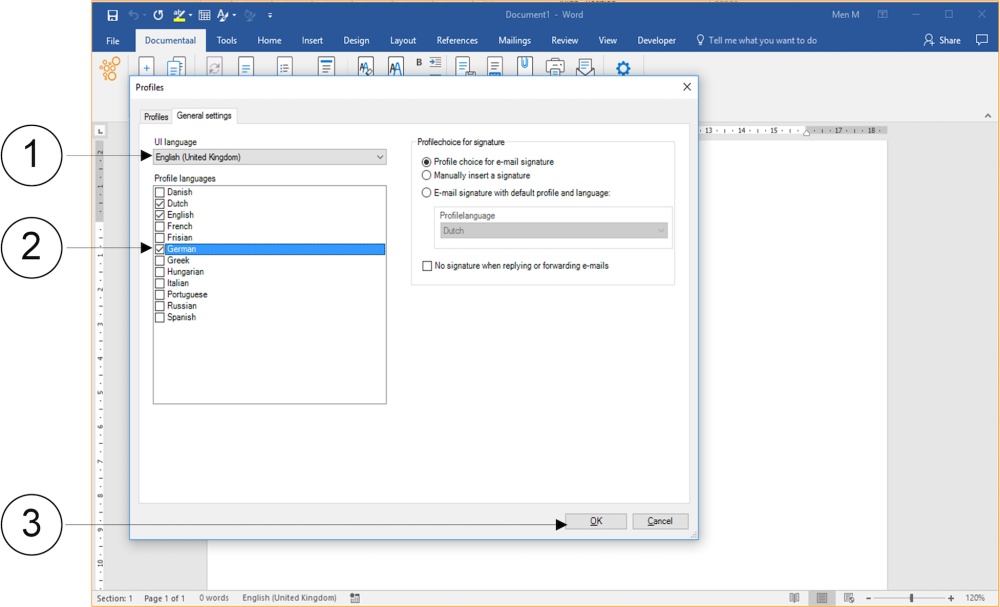
① In the Profiles window, click the General settings tab.
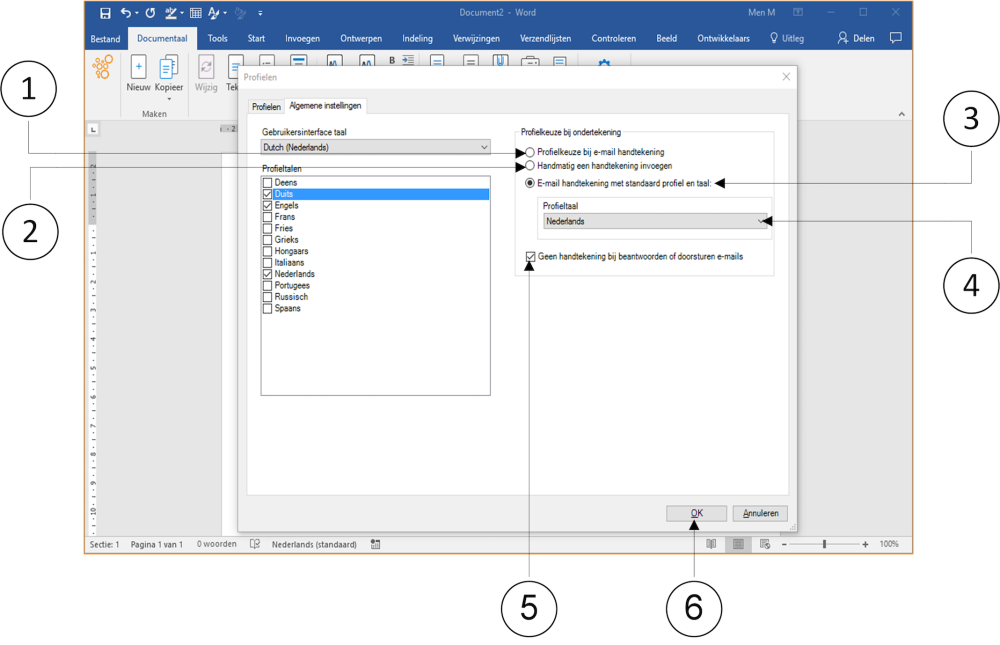
① Set the option Profile choice for e-mail signature (option 1).
② Set the option Manually insert a signature (option 2).
③ Set the option E-mail signature with standard profile and language (option 3).
④ Click on the bar under Profile language. A dropdown menu appears. Set the correct Language that corresponds to option 3 here.
⑤ A checkmark in the checkbox No signature when replying or forwarding e-mails means that no signature will be placed (option 4).
⑥ Click the OK button. The Profiles window closes.