PKI signing
Using the PKI signing module, a user can have a document signed using the PKI signing platform.
Electronically signing a document starts by emailing the document:
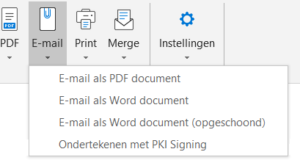
After this, a panel will open in MS Word where the signing details are prepared, and the signing process can be started.
The signing details
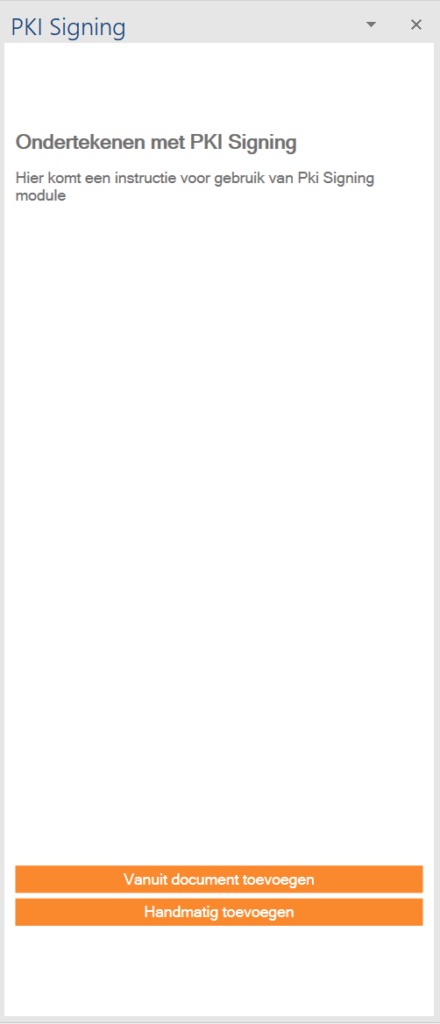
To sign a document, signatories are needed. These signatories may already be present in the dStyle365 data stored within the document. When opening the panel, this data is scanned and, as much as possible, prepared for the user.
If no ready-made data is found, the panel will open as shown in the image.
The user can then manually add new signatories or search for personal data in the document to add as a signatory.
If the document is not a dStyle365 document, meaning it was not created with the new function and not with a dStyle365 template, no personal data will be present in the document.
For PKI signing, the following data must be present:
The name of the signatory. This is either the first name, or the last name, or both.
Email address of the signatory. When entering an email address, the format of the address is checked, but it is not verified whether the address actually exists. Please fill in this field carefully.
The mobile phone number is also mandatory. When signing the document, so-called "two-factor authentication" is used. This means that the signatory receives a code on their mobile, which they must enter into the signing process to verify that the email address and mobile number belong together. Instead of a mobile number, a landline number can also be used, but this is generally considered undesirable because landline numbers are often shared by different people.
Finally, a signing deadline or expiry date must be provided.
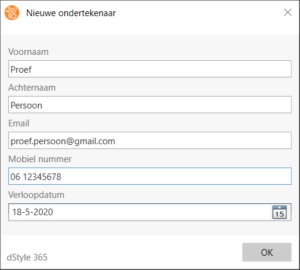
The personal data mentioned above is entered into a dialog box. The dialog box can only be closed with OK if the mandatory data has been entered. Furthermore, the expiry date must be in the future:
All persons listed as signatories appear in the PKI Signing panel. If the data is incorrect or incomplete, this is indicated in the list. The data of all signatories can always be adjusted with the modify button or removed with the delete button:
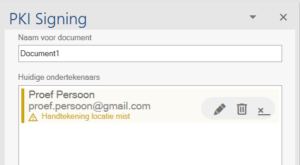
In the example above, it is stated that the signature location still needs to be added. This is necessary for all persons who were not automatically added when starting the module.
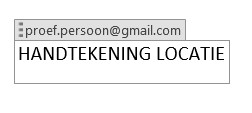
The signature location is added when the button is pressed. The location is where the user is currently positioned in the document. A content control with the text "SIGNATURE LOCATION" appears in the text:
The signing process
The signing process is started by pressing the start button. This button only becomes active if at least one signatory is present, and if all signatories have been correctly filled in, AND if all signatories have a signing location in the document.
After starting, authentication with the PKI Signing platform will take place. This is automated as much as possible. For example, the user can give permission to the module the first time to send future signing requests as well (from the same PC by the same user) without needing full authentication every time.
The authentication and permission process occurs in a separate window, controlled by the PKI Signing platform.
The signing process can still fail under various conditions. The user will receive notification of this in a message window. Conditions include:
- Different signatories have the same email address.
- The authentication process fails.
- The user does not give permission.
If the signing process has started successfully, the user will see this in a message window. The further progress of the signing is now in the hands of the PKI Signing platform. This platform sends emails to the signatories and notifies the user on their PKI account when the signing is completed.