Personal Profiles
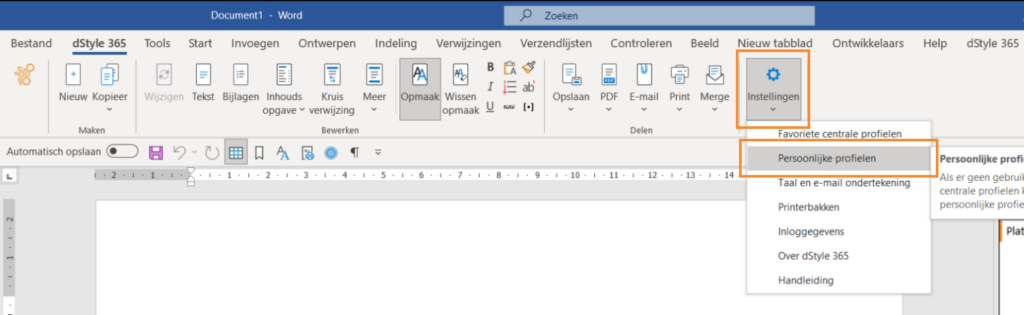
In the dStyle365 / LegalWord365 ribbon, go to Settings > Personal profiles.
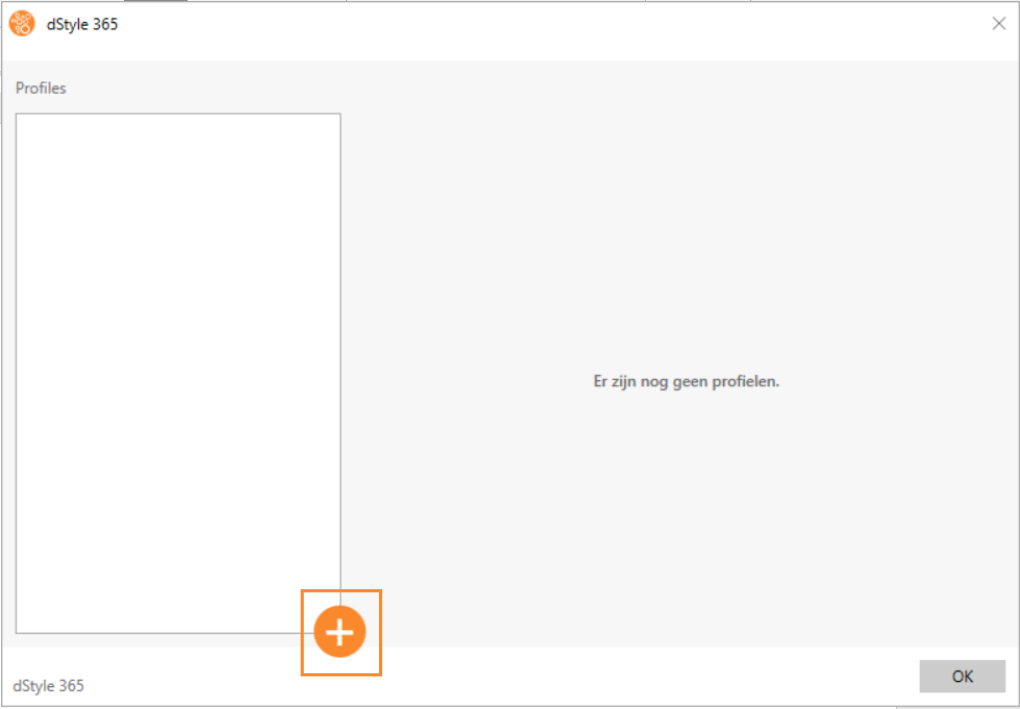
Click the plus button to add a new profile.
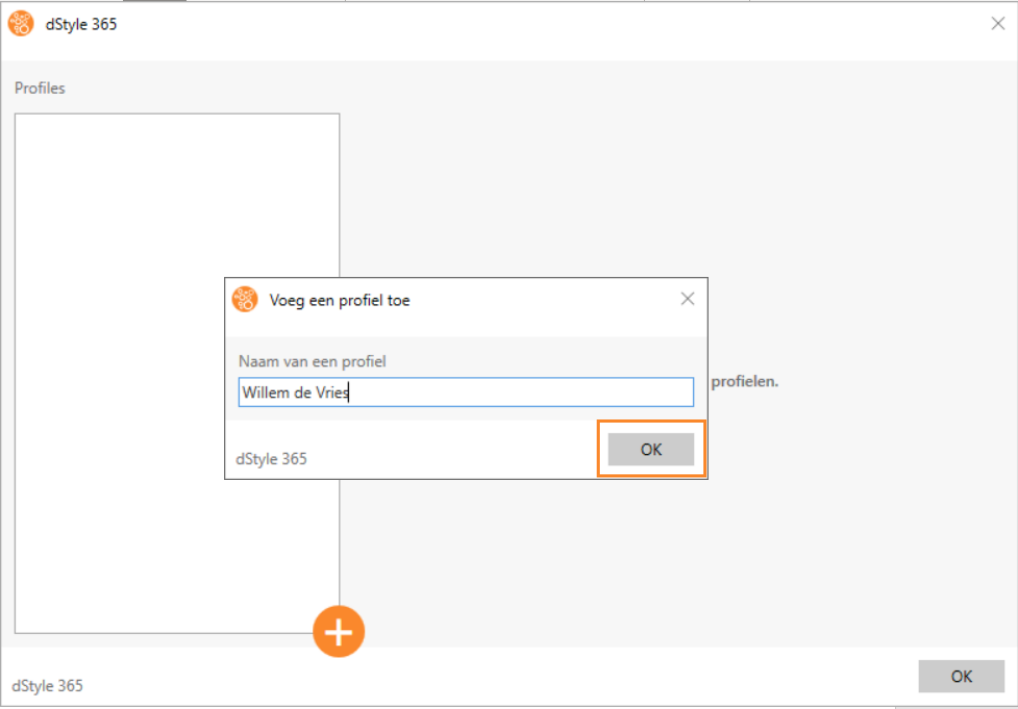
Give the profile a name and press OK.
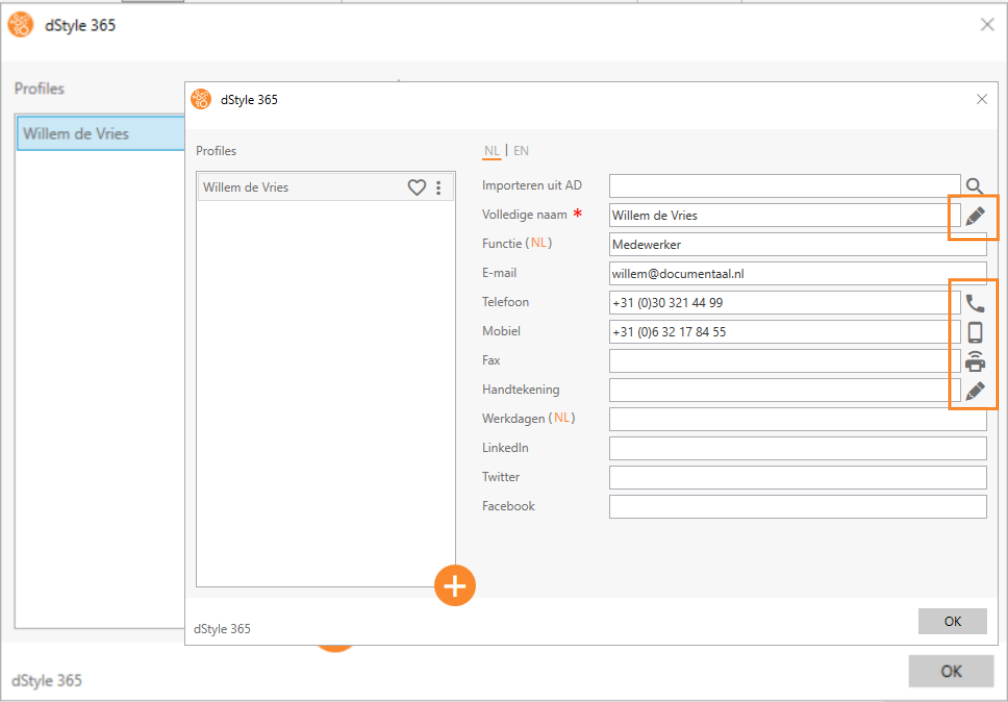
Fill in the details on the right side of the screen. Click the symbols to the right of the input fields to add the full name, phone number, mobile number, fax, and signature.
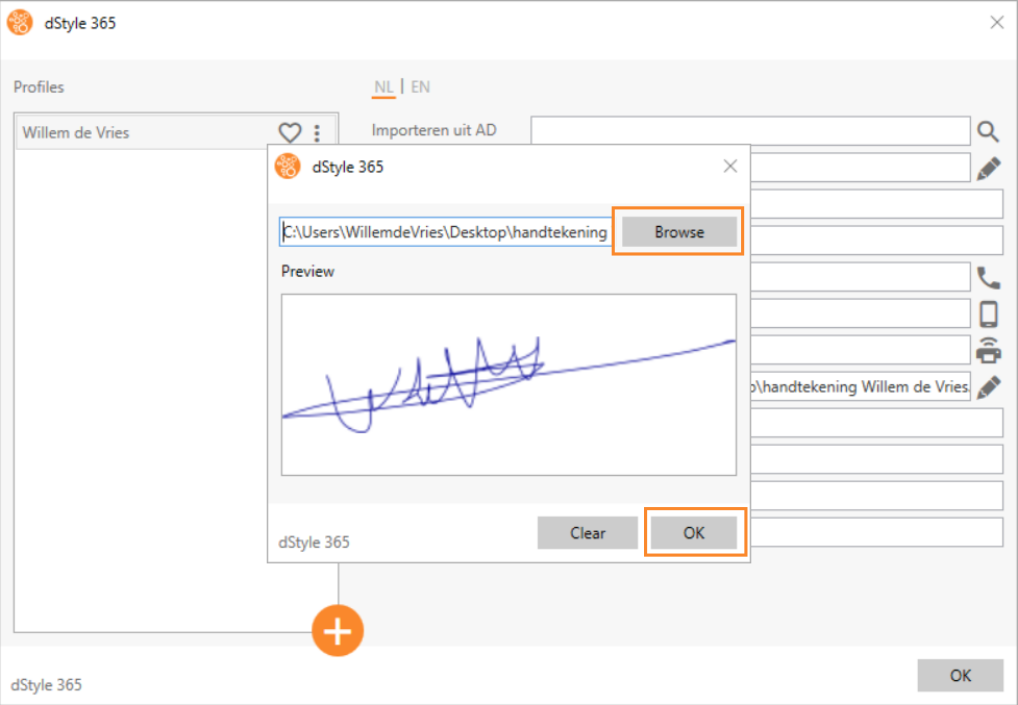
To add the signature, click the Browse button to select the signature image from your system. Then click OK to confirm.
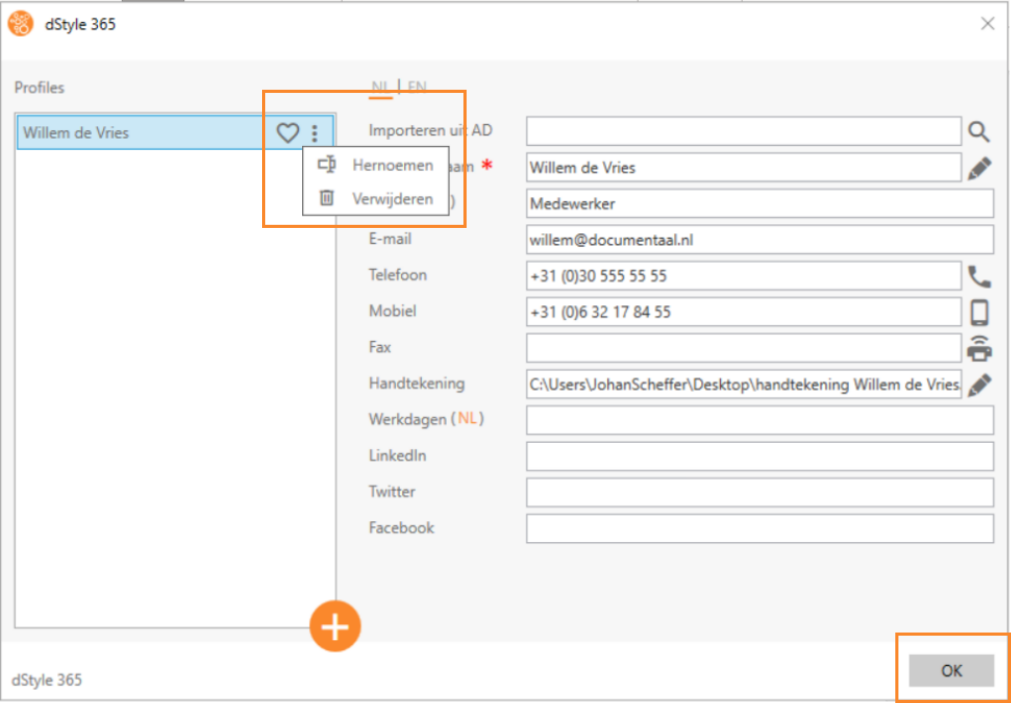
Click the heart icon next to the profile name to make that profile a favorite. This profile will then be automatically selected when creating a document. Click the three vertical dots to rename the profile or to delete it.
Once you have finished creating the profile, click OK.