Formatting Pane
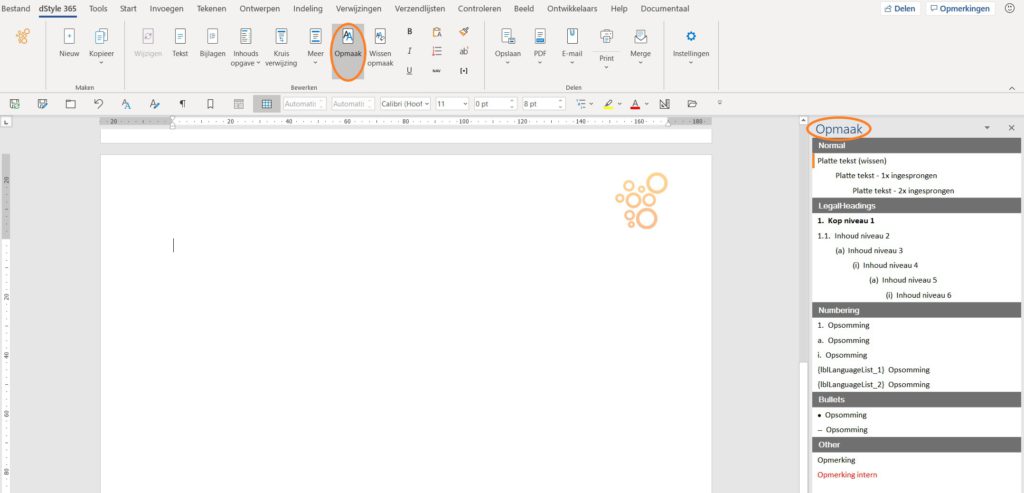
In the standard templates, various options for formatting and numbering are included in the Formatting Pane. The Formatting Pane automatically opens with every document on the right side of the screen.
The Formatting Pane can be closed with the 'x' in the top right of the screen and manually opened by clicking the Formatting button in the dStyle365 / LegalWord365 ribbon.
The Formatting Pane displays the formatting exactly as it will appear in the document. What you see is what you get.
Place your cursor in a paragraph or select multiple paragraphs, then click the desired formatting or numbering in the Formatting Pane. Changing the formatting has no limit; you can apply new formatting an unlimited number of times.
When using bulleted or numbered lists, it can happen that a second list with the same formatting does not start at 1. This can be easily corrected by placing the cursor on the line that should start at 1 and clicking the Renumber button in the dStyle365 / LegalWord365 ribbon.
