Mail Merge
Microsoft Word also offers employees standard functionality to perform a mail merge. This feature includes various options and a wizard that guides users step-by-step through the mail merge process.
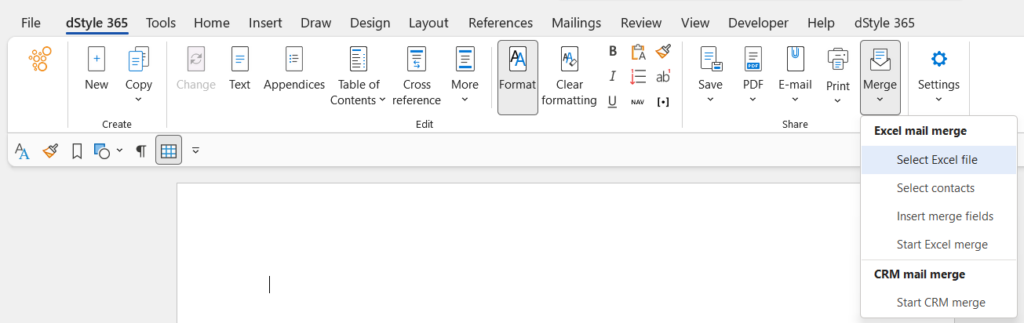
dStyle365 includes simplified mail merge functionality, allowing for even quicker and easier mail merging using Outlook contacts.
A mail merge can be performed using the following steps:
- In the corporate identity ribbon, click the 'New' button and select the document type 'Letter'.
- Fill in the dialog box with all data. Leave the fields for the address and salutation empty!
- Type the content of the letter.
- Click the 'Mail Merge' button and select the 'Select Outlook Contacts' option.
- Select the desired contacts from the list of available contacts.
- The mail merge fields have now been automatically placed in the correct position within the document. Click 'Mail Merge' again and select the 'Start Mail Merge' option.
- The mail merge has now been executed, and all letters have been merged into one complete document.