The Styles Pane
When you click the dStyle365 or LegalWord365 button in the Start/Home ribbon, the styles pane automatically appears.
These styles can vary per template.
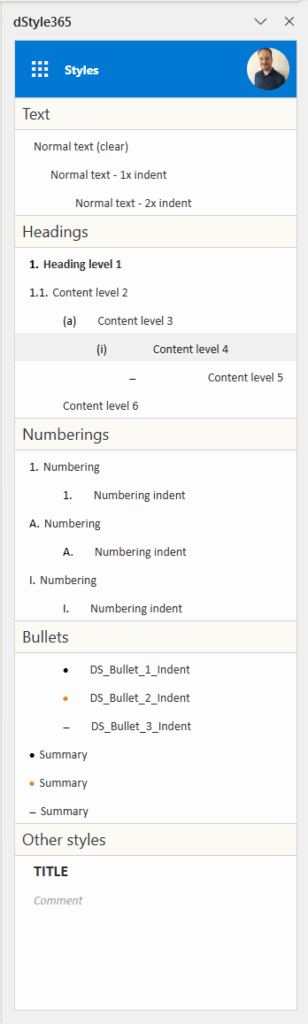
Click on a style and then click in the document to work in that style. The style will be applied at the cursor's position. Also, if you place the cursor within an existing piece of text and then click on a style, that section will be converted to the selected style.
Click the 9 small squares in the top left of the styles pane to access the other functions of the dStyle365/LegalWord365 app.