Repeating Input Fields
Repeating input fields are created from the Tools ribbon, which is only available to administrators.
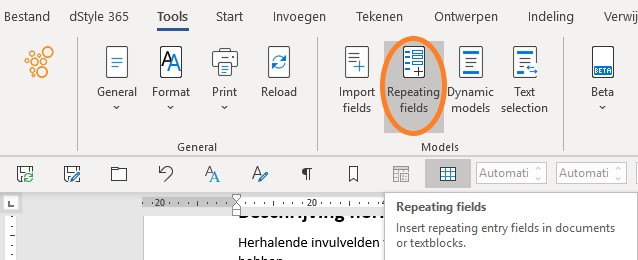
Place the cursor at the desired position in the text and go to Repeating fields in the Tools ribbon to insert the fields into the document or text fragment.
A screen called Modelmaker appears on the right side.
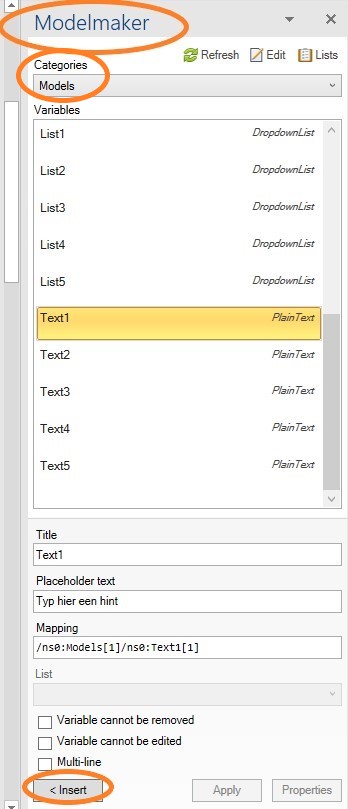
In the Modelmaker screen, click on Categories and choose Models. The available input fields will be displayed.
- Combobox1 to 5
- drop-down list, choose from the list or type your own text
- Date 1 to 5
- choose date from calendar
- List 1 to 5
- drop-down list, only choose from the list
- Text 1 to 5
- text
Select the desired field, enter a hint in the Placeholdertext field. Click the <Insert button at the bottom left of the Modelmaker screen to insert the field at the cursor's position.
Tip: To repeat the same input field elsewhere in the text, copy the field and paste it in one or more places in the text.
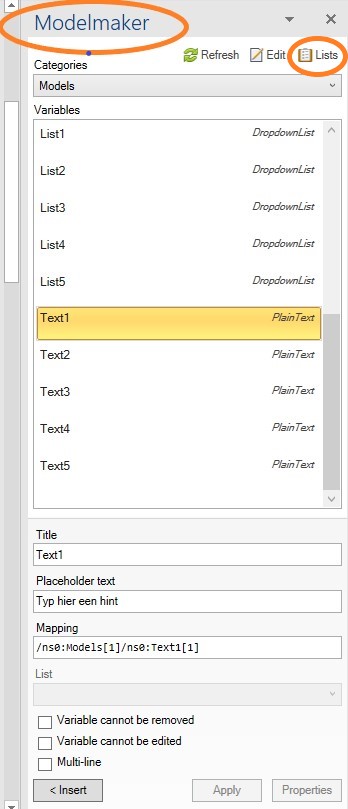
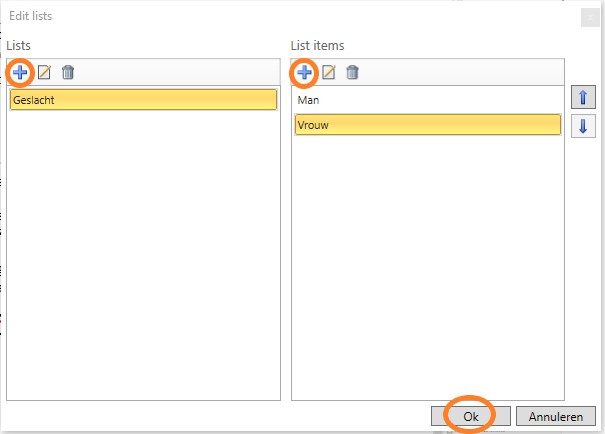
The Combobox and List fields contain selection options. Use the Lists button at the top right of the Modelmaker screen to create lists that you can use in the Combobox and List fields. In the Edit lists screen, click the + button on the left to add a list. In the right part of the screen, items can be added to the list with the + button.