Retrieving your data from your Active Directory (AD)
In the case of Active Directory, a link has been established with dStyle365. This saves you input work per profile, as you can directly retrieve the correct employee from the central system via dStyle365.
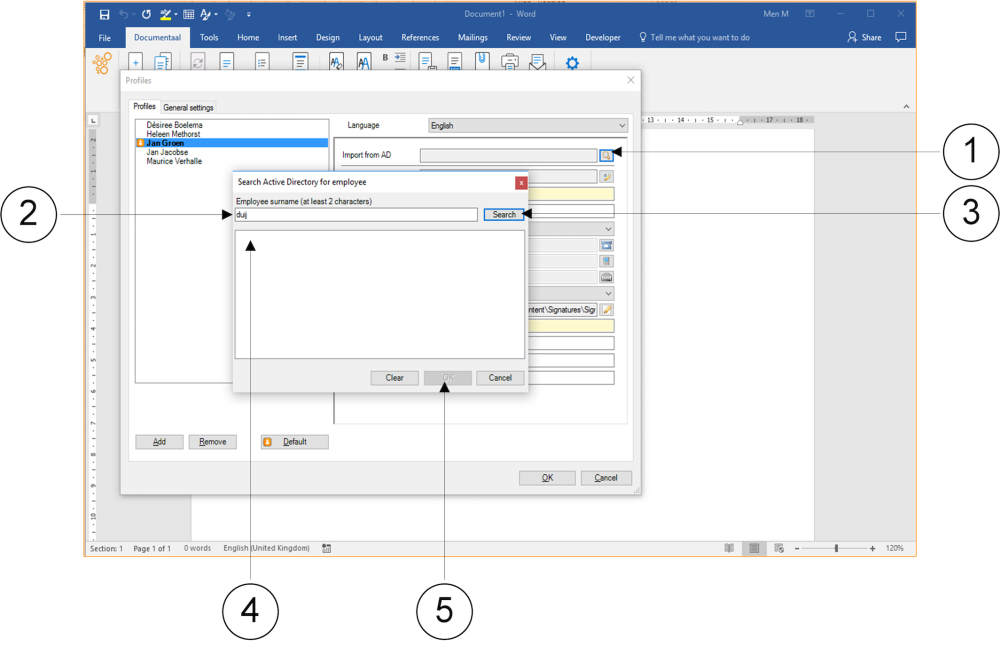
① Click the button next to the "Import from AD" input field. The "Search Active Directory for employee" window will appear.
② Type at least two characters of the last name of the person whose profile data you are searching for.
③ Click the "Search" button or press the Enter key on your keyboard.
④ In the lower part of the window, all names containing the letter combination you entered will appear. Select the name of the profile you wish to use.
⑤ Click the "OK" button. The profile is now selected, and the window closes. You return to the "Profiles" window. The fields are now populated in accordance with agreements within your organization.
It may occur that data from one of the profiles you are using has not yet been updated to reflect current changes. Therefore, it is important to always verify the accuracy of profile data retrieved from a central system.