Creating a Text Snippet
You can save frequently used texts in dStyle365/LegalWord365. Then, you can insert this text into your current document at the cursor’s location with a single click.
Before creating and saving a text snippet, open a new dStyle365/LegalWord365 document or select the text within a document you are working on that you wish to use repeatedly.
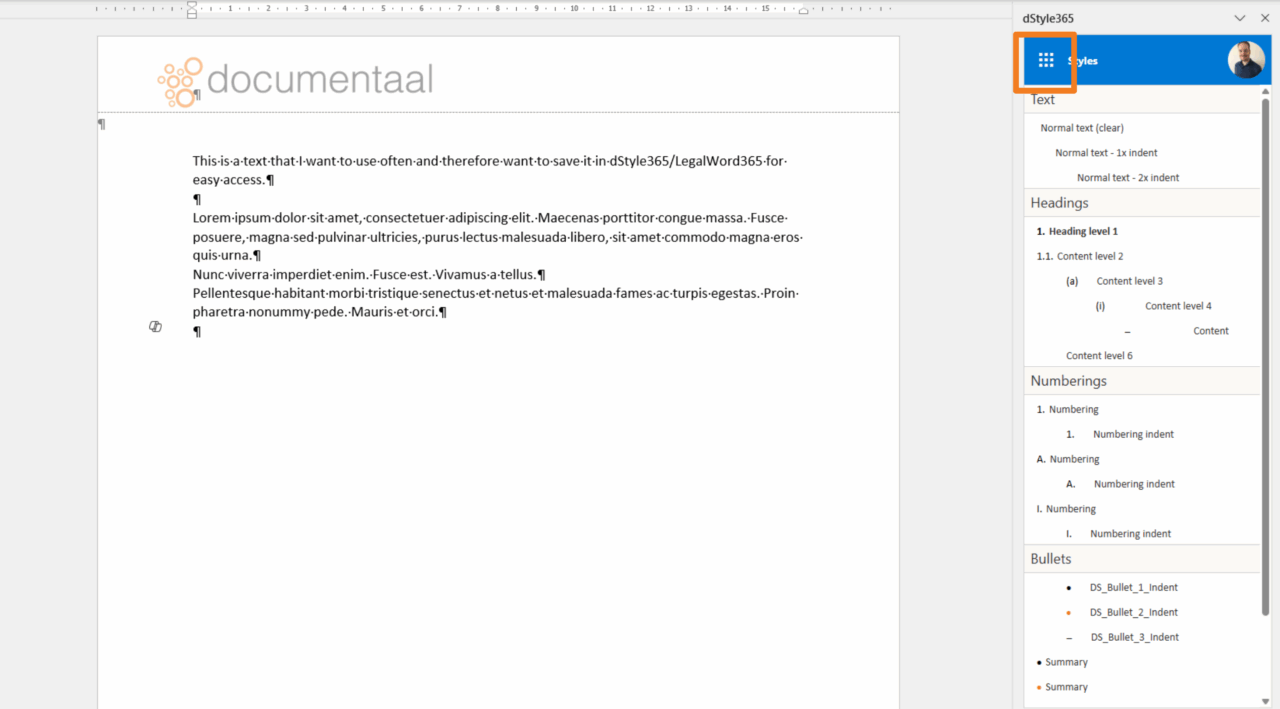
Press the top-left button in the styles panel to access other dStyle365/LegalWord365 functions.
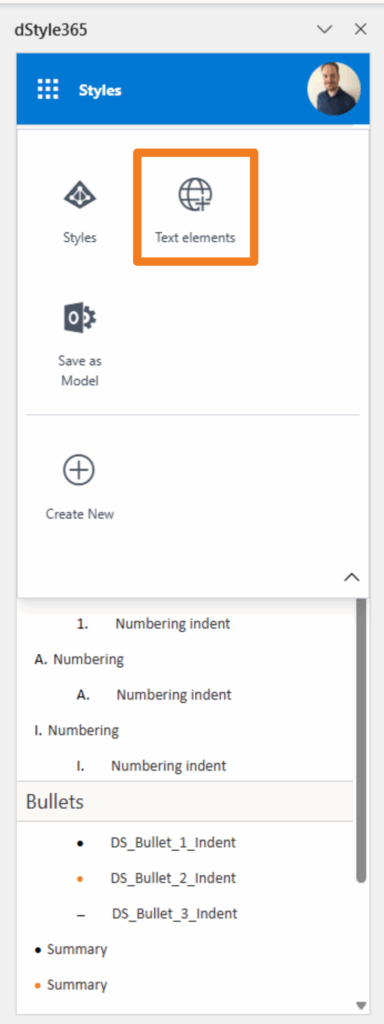
Then select Text elements.
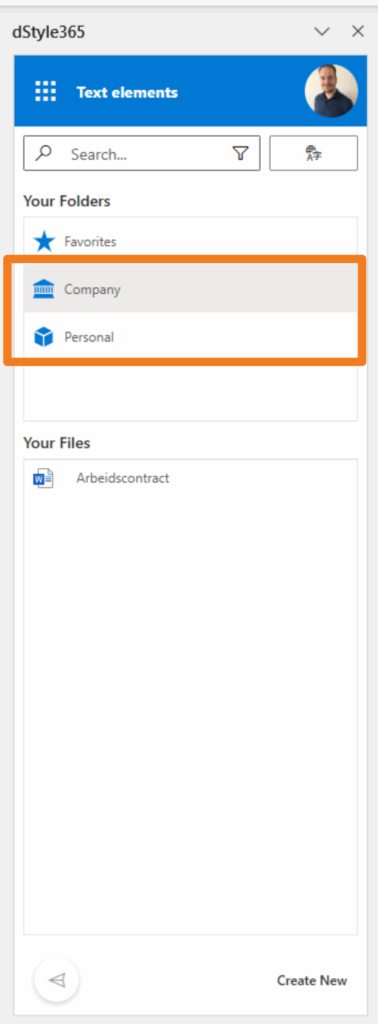
Select the location where you want to save the text snippet. If you choose Company, the snippet will be available to everyone in your organization. If you choose Personal, the snippet will be saved on your system and will only be available to you.
After you have decided where to save the text snippet, press Create to save it. If you do not select specific text, you will receive the message below. You can then save the entire text within the document as a text snippet. If you select specific text within a document, you will not be asked this question.
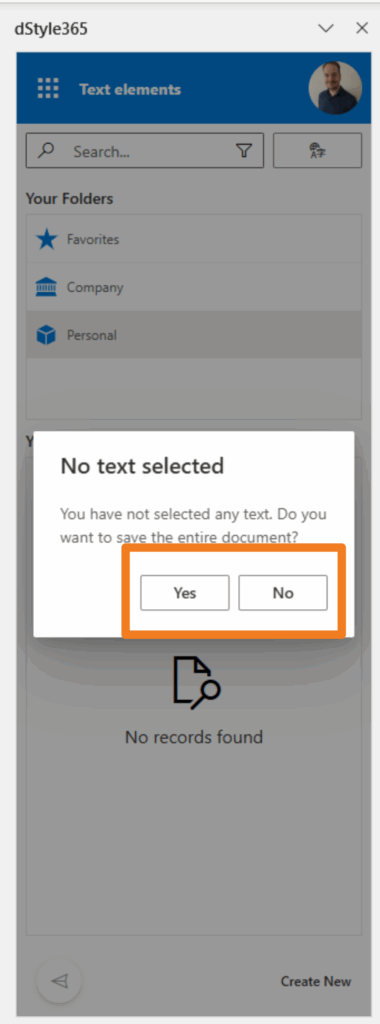
Click Yes to save the entire text within the document as a text snippet or No to return and select a portion of the text in the document.
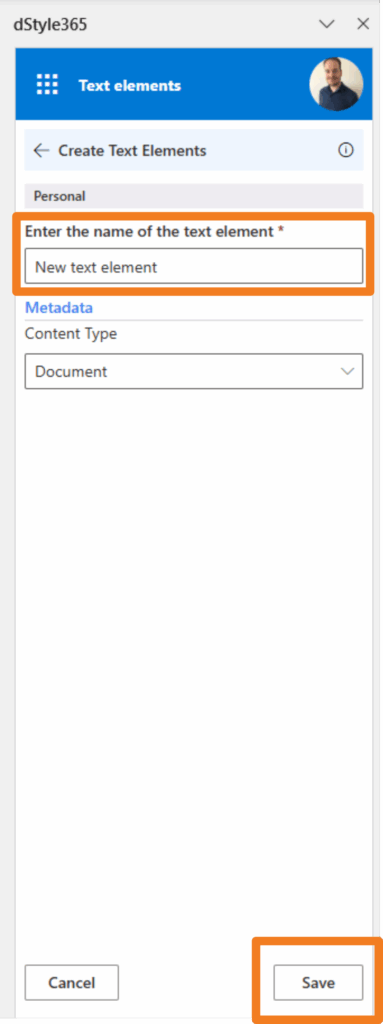
Give the text snippet a name and click Save.
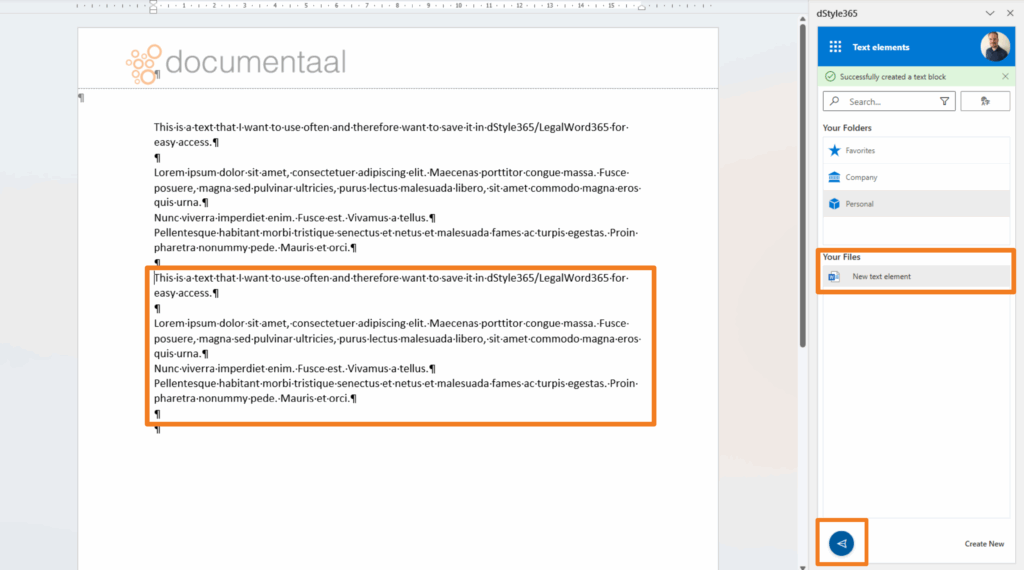
Select the text and click the blue arrow to insert the text at the cursor’s location.