Creating a Static Model
Static models are a combination of a dStyle365/LegalWord365 template combined with text. The template and text are saved together in a model as a .docx file containing the dStyle365/LegalWord365 intelligence. This model can then be opened as a new document. You only need to fill in the required data for the new situation. This is useful when you frequently use the same texts/documents.
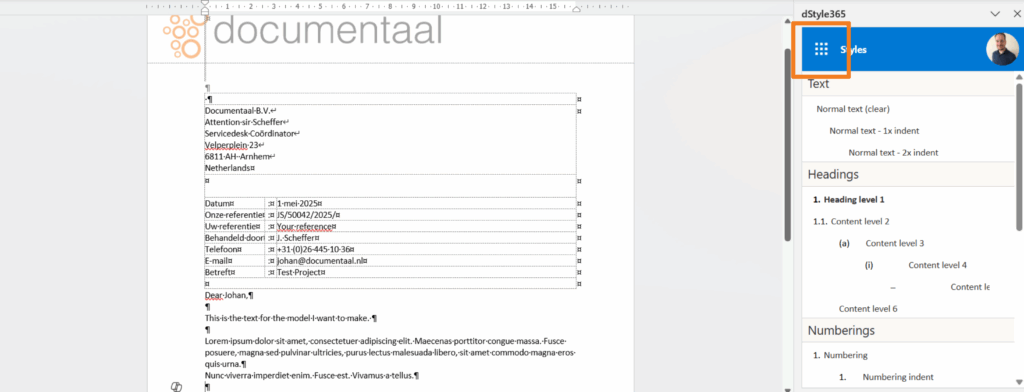
After creating the document, click the top left of the styles pane to display the other functions of dStyle365/LegalWord365.
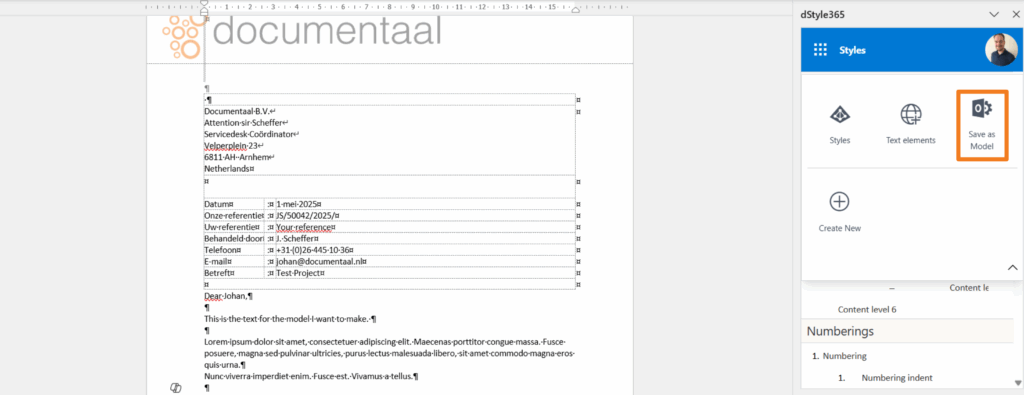
Then select Save as Model.
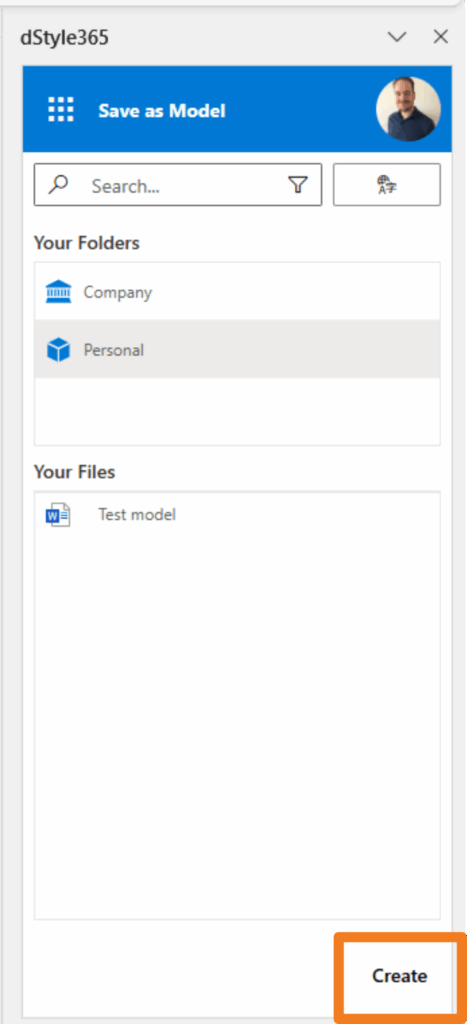
Now you can determine where to save the model. If you choose Company, the model will be available to all users within your organization. If you choose Personal, the model will only be available to you and will be saved on your system.
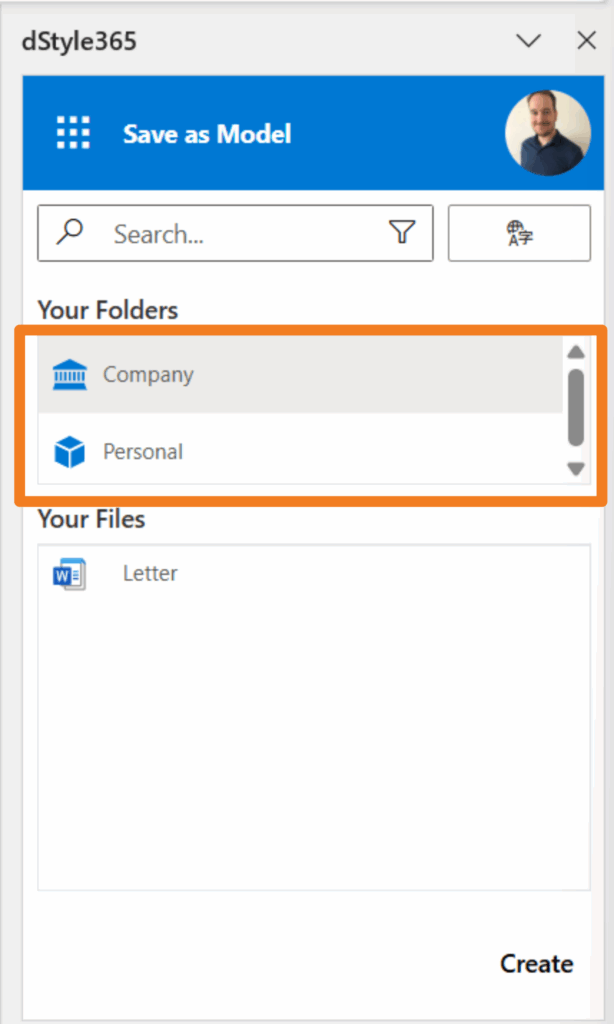
Once you have determined where to save the model, click Create.
In the next screen, you can specify which data you want to capture in the model. For example, you can give the model the subject you entered when creating the original document. Every time the model is then used for a new document, the subject will already be filled in.
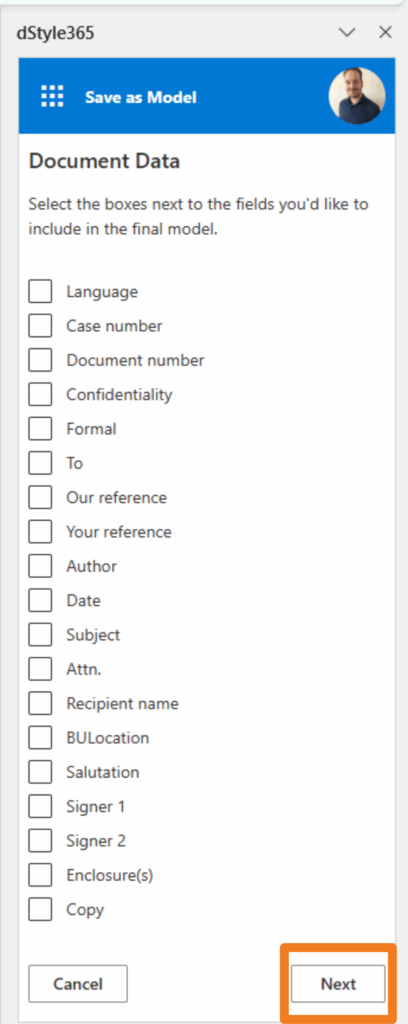
Click Next once you have selected the fields.
Give the file a name and click Save to save the model.
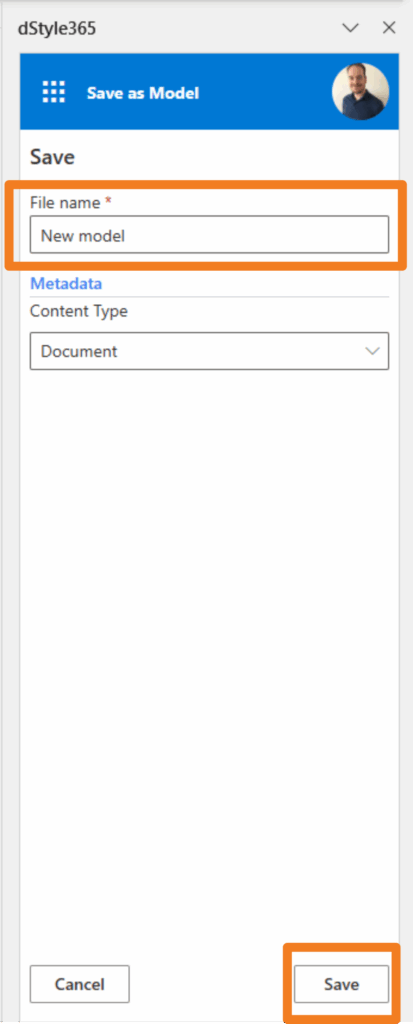
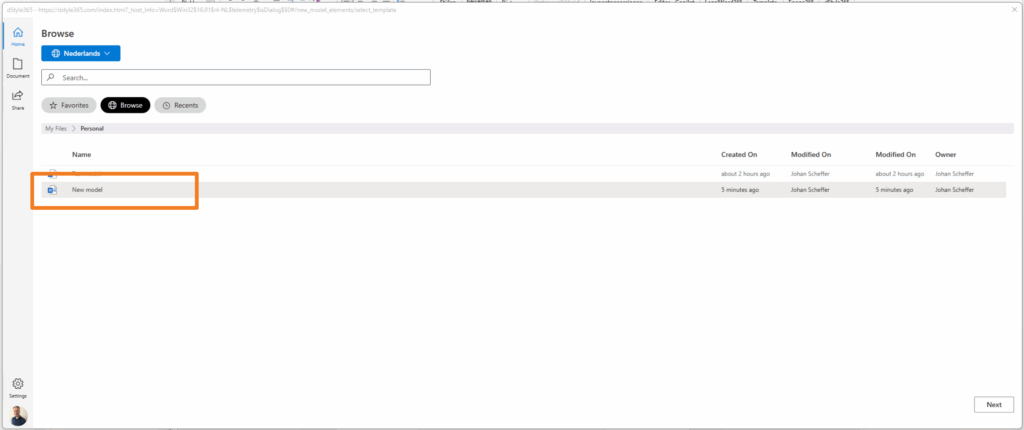
If you then open a new document, you will see the created model in the location where you saved it.