Ga naar hoofdinhoud

    Wij respecteren uw privacy

    Wij gebruiken cookies om uw ervaring te verbeteren, verkeer te analyseren en onze diensten te optimaliseren. U kunt uw voorkeuren aanpassen of alle cookies accepteren.

    Meer informatie in ons privacybeleid en cookiebeleid.

    👋 Hoi! Ik ben je AI-assistent

    Ik help je graag met vragen over documentautomatisering, Microsoft 365 en onze oplossingen!

    translated
    dStyle365
    LegalWord365
    Outlook
    signature
    email
    automatic signature

    dStyle365/LegalWord365 Outlook Signature

    Easily insert an Outlook signature into new emails or when replying and forwarding. The signature uses the data in your profile.

    Published on December 1, 2025
    1 min read
    Documentaal knowledge center

    dStyle365/LegalWord365 Outlook Signature

    Easily insert an Outlook signature into new emails or when replying and forwarding. The signature uses the data from your profile.

    The signature can be inserted automatically or manually and may be available in multiple languages.

    Open a new message in Outlook and click the Signature button in the Message ribbon.
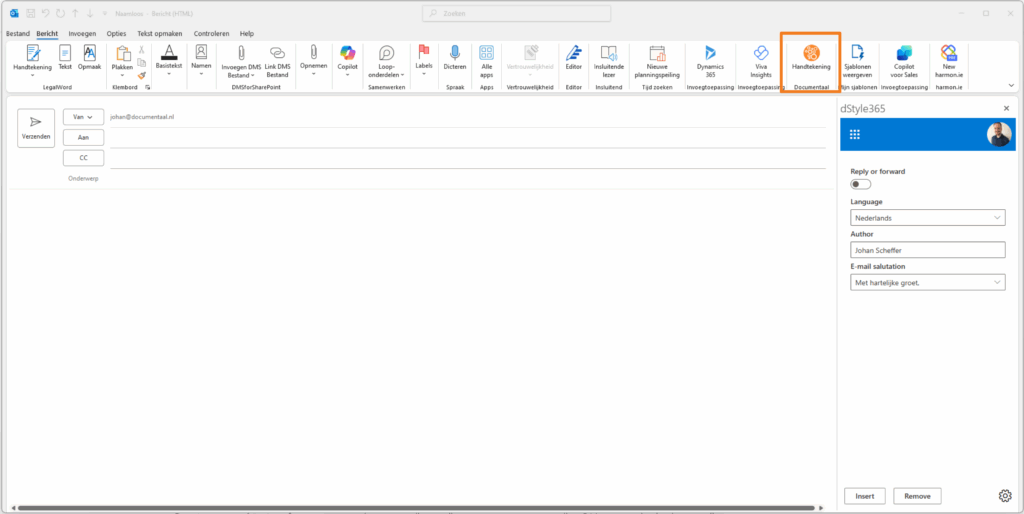
    Signature button in Outlook

    Select the language, author, and greeting if applicable, then click Insert to add the signature.
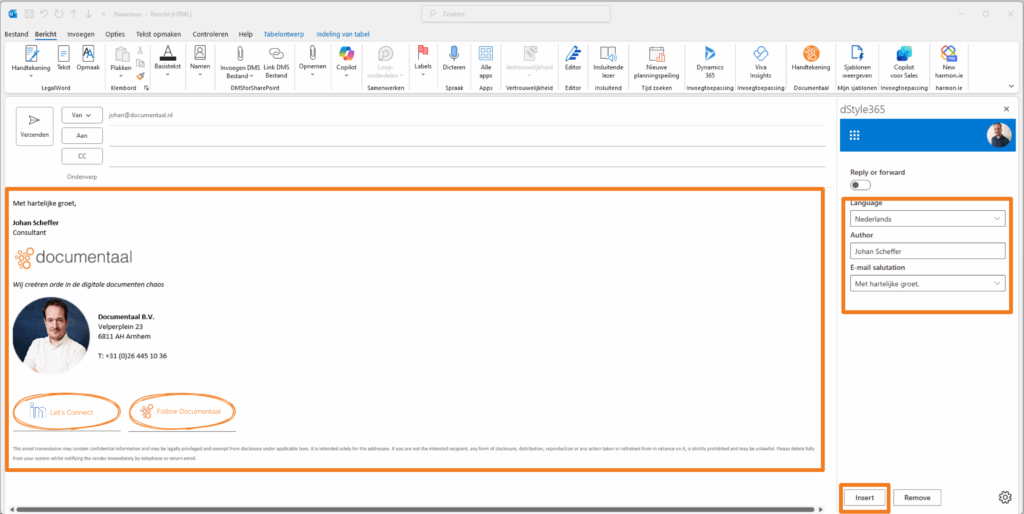
    Insert signature

    Automatically insert signature

    To automatically insert an email signature, click the settings button in the bottom right corner of the dStyle365/LegalWord365 screen.
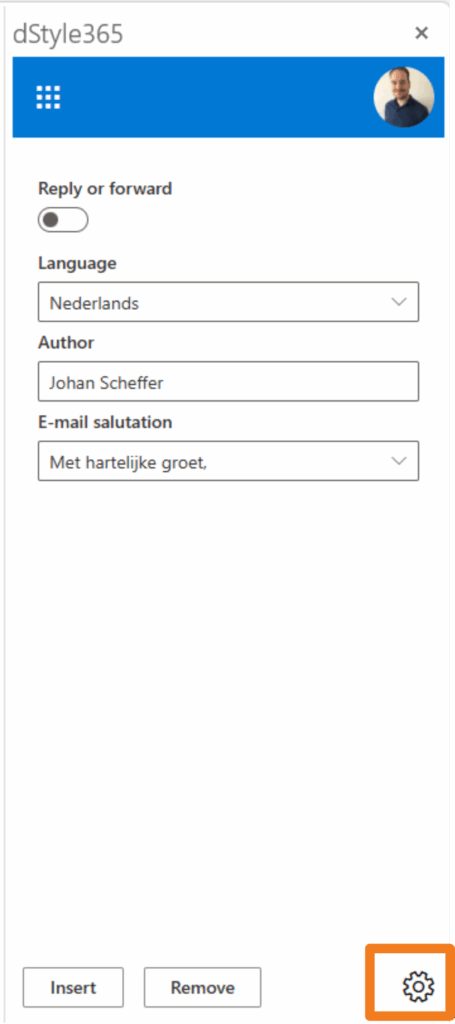
    Settings button

    On this screen, you can adjust the interface language and set your language preferences.
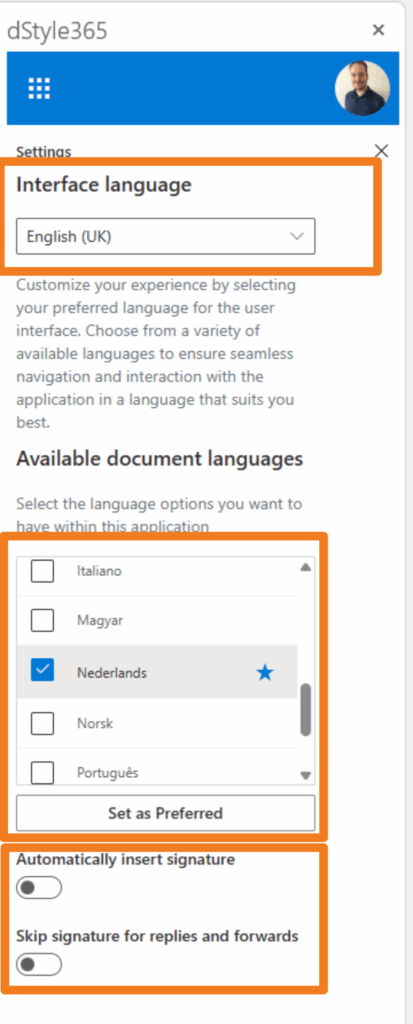
    Language and signature settings

    Under Automatically insert signature, you can specify whether a signature should be automatically placed with every new email.

    Under Skip signature for replies and forwards, you can set that no signature is placed when you reply to or forward an email message.

    Discover more articles

    View more guides and tips in our knowledge center