Drop Down Lists
Drop down lists, which appear in dialogs, can be managed from the Tools ribbon, which is only available to administrators.
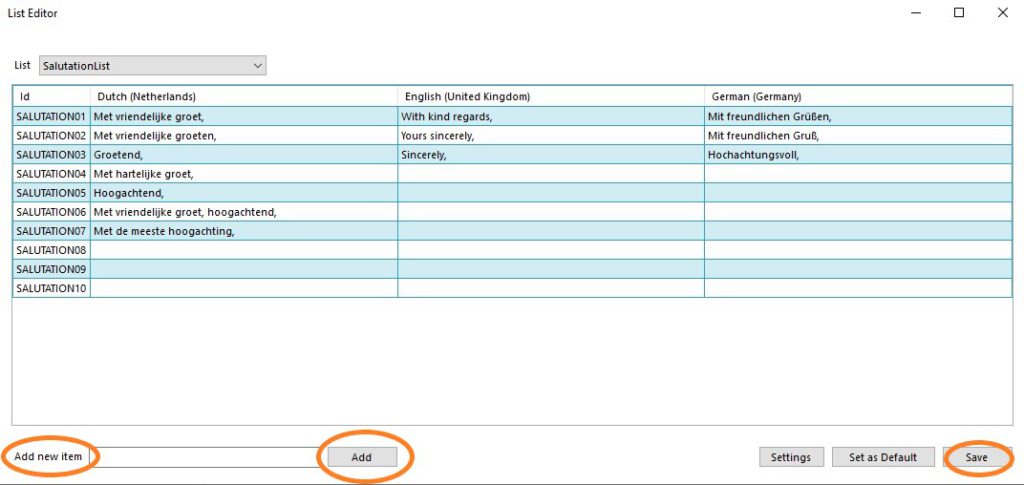
In the Tools ribbon, go to General > Drop down lists. The List editor screen will open.
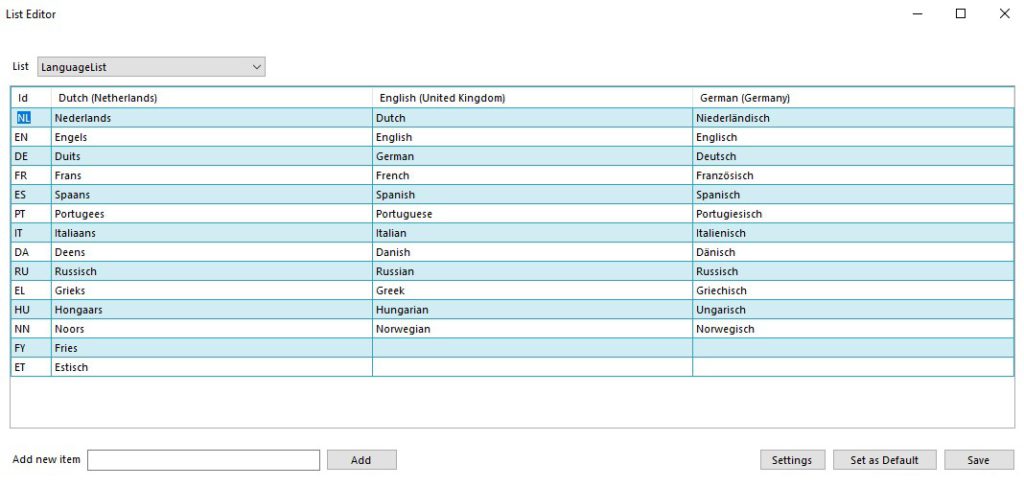
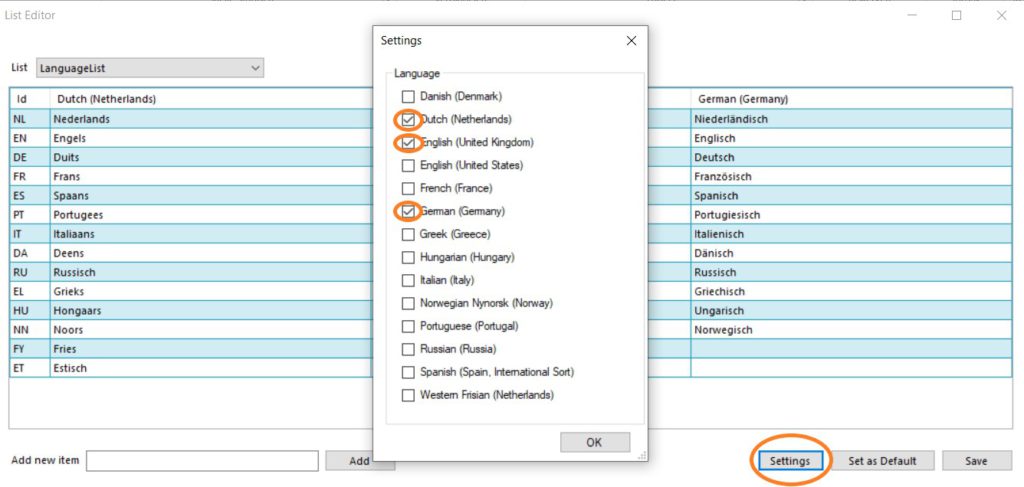
Clicking the Settings button opens the screen where the desired languages can be checked.
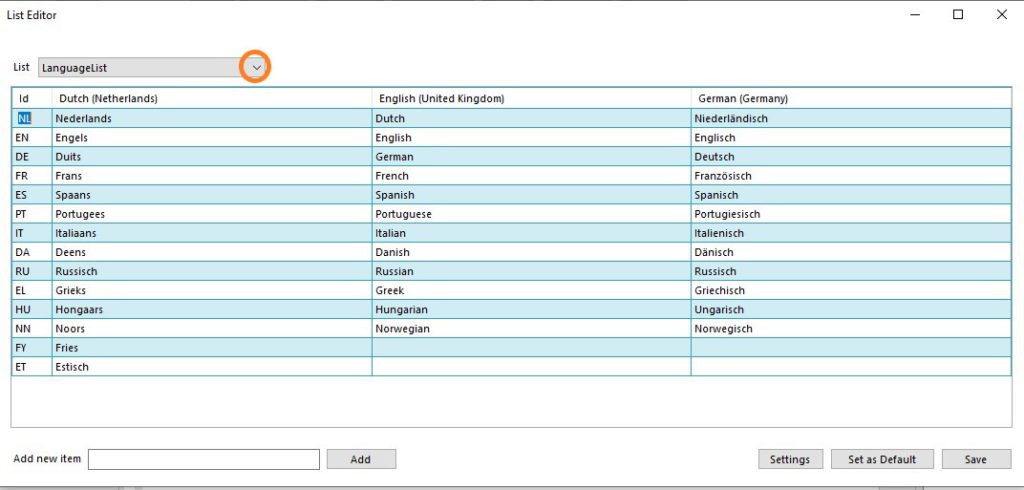
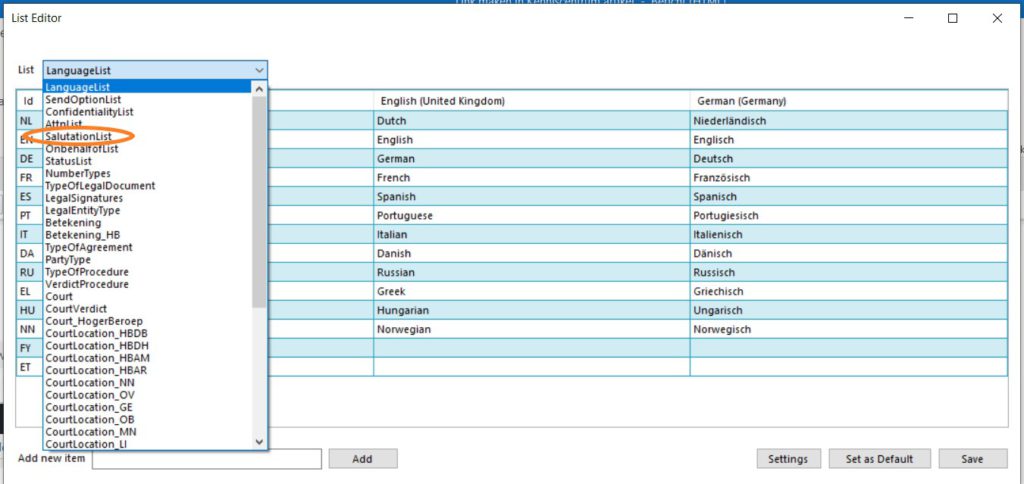
The List dropdown shows all available lists that can be modified.
Choose the list that needs to be modified.
Make the change in the desired languages and click the Save button.
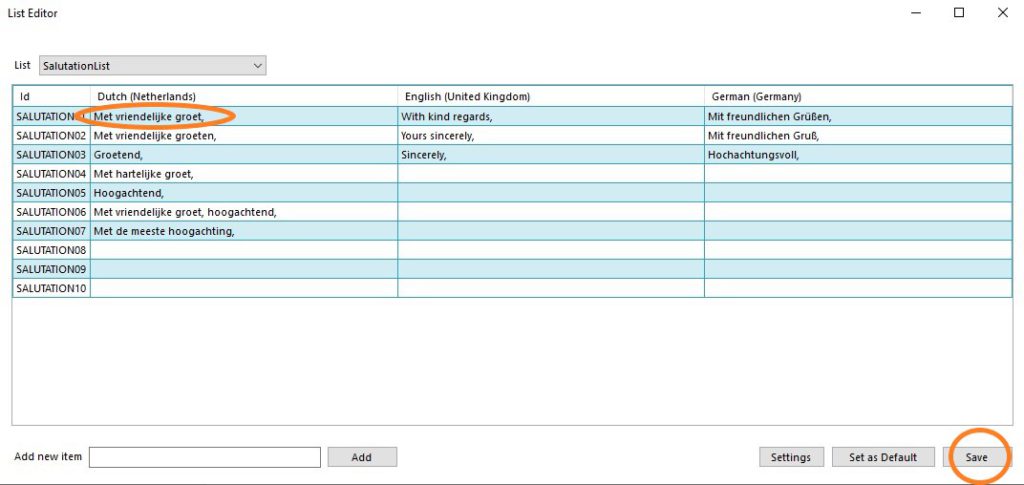
Tip: Note that a change applies to all templates.
Add new value
Enter a new ID (it must be unique) under Add new item and click the Add button. Then add a new value in the desired languages and click the Save button.