Ga naar hoofdinhoud

    Wij respecteren uw privacy

    Wij gebruiken cookies om uw ervaring te verbeteren, verkeer te analyseren en onze diensten te optimaliseren. U kunt uw voorkeuren aanpassen of alle cookies accepteren.

    Meer informatie in ons privacybeleid en cookiebeleid.

    👋 Hoi! Ik ben je AI-assistent

    Ik help je graag met vragen over documentautomatisering, Microsoft 365 en onze oplossingen!

    document status
    watermark
    dStyle365
    LegalWord365
    how-to

    Document Status / Watermark

    The 'Watermark' function allows you to easily place the status of a document as a watermark within the document.
    Published on January 8, 2026
    2 min read
    Documentaal knowledge center

    Document Status / Watermark

    The 'Watermark' function allows you to easily place the status of a document as a watermark within the document.

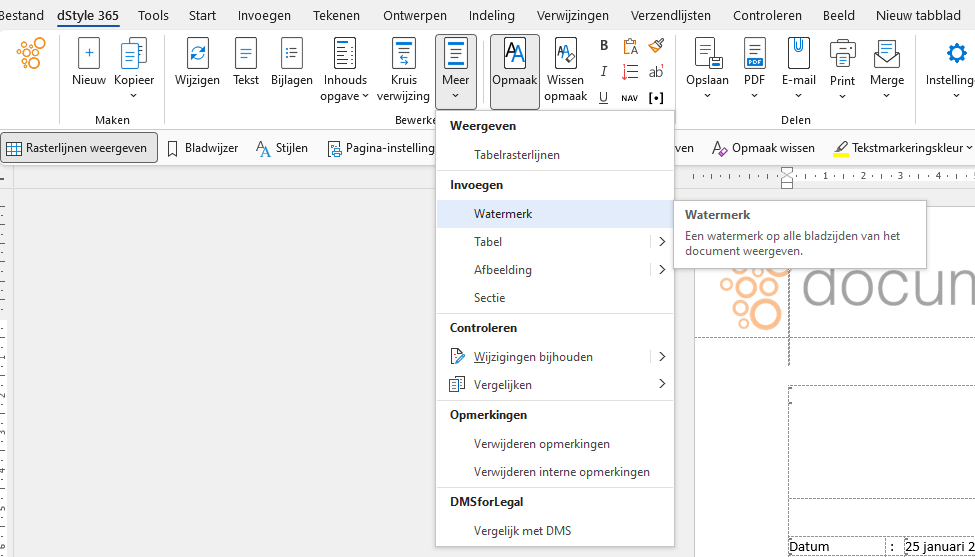
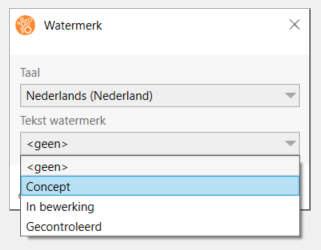
    Watermark function in ribbon Watermark dialog box

    Applying

    In the dStyle365/LegalWord365 ribbon, click the 'More' button and then 'Watermark' to add a status to the open document. The status will be displayed and printed as a watermark in the document.

    In the dialog box, choose the language you want to use for the status and then select a status from the dropdown list. Clicking the 'OK' button will place the status in the document.

    Modifying

    If you want to change the status watermark, click the 'More' button again in the dStyle365/LegalWord365 ribbon, then 'Watermark', and choose a different status or language in the dialog box.

    Removing

    If you want to remove the status watermark, click the 'More' button again in the dStyle365/LegalWord365 ribbon, then 'Watermark', and select 'none' in the 'Status' field of the dialog box.

    Related articles

    Discover more articles

    View more guides and tips in our knowledge center