Attachment button
In the LegalWord365 ribbon, the Attachment button is used to create a list of many types of attachments. From this list, cross-references and a summary of the attachments can be placed in the corresponding document.

Create attachment list (new)
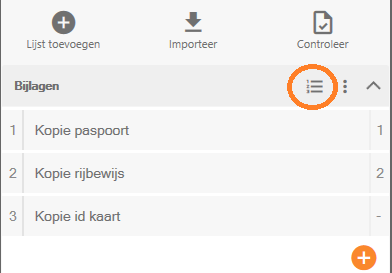
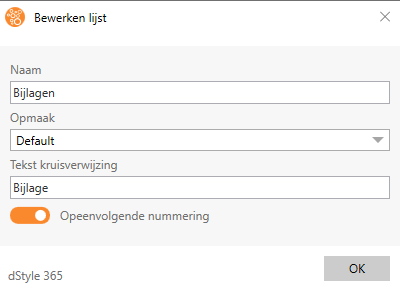
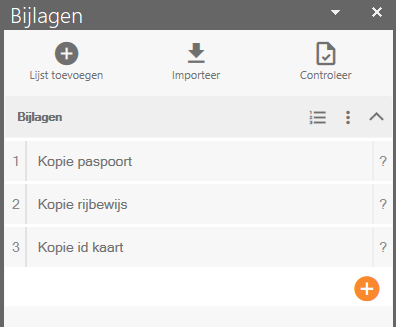
Click the Attachment button; the Attachments screen, with the introduction text, will open on the left side of the screen. Click the New list button, fill in the fields in the screen that appears, and click OK to close the screen and create the list.
Import attachment list
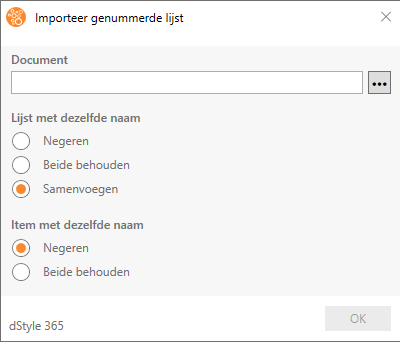
Click the Import button or, in the introduction screen of the attachment button, click the Import button.
Select the document in which an attachment list was previously created. Then indicate what you want the software to do if the list name already exists in the current document and if there are items with the same description. Click OK to close the screen and import the list into the active document.
Add attachments to a list
In the right side of the attachments screen, click the round orange button with the plus sign to add attachments to the list. The screen for adding a new attachment appears. Fill in the fields in the screen that appears and click OK to close the screen and add the attachment to the list.
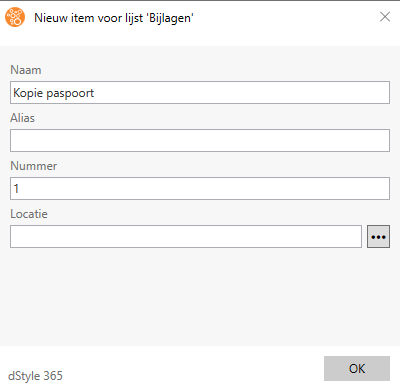
In this way, an unlimited number of attachments can be added to the list, either while you are creating the document or all at once.
Place and/or edit a cross-reference
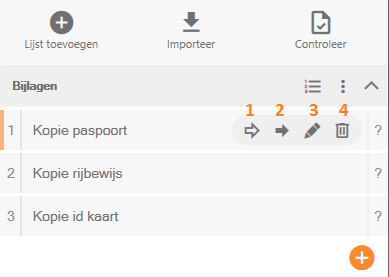
Place the cursor in the document where the cross-reference should appear. Hover the mouse over the desired attachment in the attachment screen to make the buttons belonging to an attachment visible.
Place a summary
Place the cursor in the document where the summary should appear and click the Insert Summary button. The summary typically includes the numbers and descriptions of the attachments. The title of the summary is the name of the list.